On this page
- 1. Before you start: how BOWLMINE thinks about events
- 2. Organizer role and profile
- 3. Creating an event
- 4. Rounds: the heart of every event
- 5. Publishing and sharing
- 6. Player sign-up on the event page
- 7. Canceling a registration
- 8. Managing registrations and manual entry
- 9. Print version
- 10. Results
- 11. Training, parties and other events
- 12. When something goes wrong
- 13. Limitations worth knowing
- 14. Checklist before you publish
Along the way we answer the questions organizers usually ask. We also point out limitations worth knowing about in advance.
How to read this guide: If you are creating your first event, read chapters 1 to 10 in order. If you already know BOWLMINE and something is not working, go straight to chapter 12, When something goes wrong.
1. Before you start: how BOWLMINE thinks about events
Before you open the first form, it pays to understand a few terms. Everything else is built on them.
| Term | What it is | Example from our tournament |
|---|---|---|
| Event | The "wrapper" of an activity: name, bowling center, dates, description and organizer contact. It has one of three types: tournament, training, or general event. | Autumn Cup 2026 |
| Round | A specific date within the event. It has its own start time, capacity, price and registration window. A player always signs up for a round, not for the whole event. | Qualification A (Sat 9:00), Qualification B (Sat 13:00), Final (Sun 10:00) |
| Total slots | The capacity of the round, that is, how many players take part. | 8 |
| Substitutes | How many more registrations the round accepts on top of the capacity. Whoever signs up after the capacity is full automatically becomes a substitute. | 2 |
| Re-entry | The option for one player to sign up for several rounds of the same event (typically a repeated start in qualification). For a tournament you switch it on with the option "Allow re-entries". For training and general events the same option is called "Allow signing up for more rounds" and the word re-entry is not used there. | Allowed, re-entry fee 20 GBP |
| Registration window | The period during which players can sign up for a round ("Signups open" and "Signups close"). | from 22/10/2026 8:00 to 13/11/2026 20:00 |
| Advancement round | A round that players do not sign up for themselves: who takes part is decided by the results of earlier rounds, and you enter the players manually. A final or semifinal is also created this way. In a tournament, its start also determines its stage: a later start means a higher stage. | Final |
| Bowling center from the catalog / your own bowling center name | You can link an event to a bowling center from the BOWLMINE catalog (city and country are taken from it), or enter your own name. | Strike Arena (own name) |
| Time zone of the event | The local time of the bowling center. Round starts and registration windows are calculated in it. | Europe/London |
| Private event | A published event that is not listed in the calendar or in search and is reachable only through its link. | Birthday party |
| Interim and final results | Round results published on the event page; when the tournament is finished, they become the final results. | see chapter 10 |
| Overall ranking | The order of players across all rounds in the results table of the event. In a tournament with advancement rounds, the highest stage reached decides; the other players are ranked by qualification. The rules are in chapter 10.3. | Finalists by the Final, then the others by qualification |
Question: I'm running a one-day tournament with a single start. Do I need rounds at all?
Answer: Yes, at least one. A player signs up for a round, so without a round there is nothing to sign up for. A one-day event with a single start simply has one round.
Question: When should I use more rounds?
Answer: Whenever the event has several start times: qualifying sessions, a final, individual training sessions, or league nights. Each round can have a different capacity, price and bowling center.
2. Organizer role and profile
The organizer zone is available only to accounts with the Tournament organizer role. You do not get the role automatically: you request it, and a BOWLMINE administrator reviews the request.
2.1 The "For organizers" page
You will find the For organizers page through the Add event button in the event calendar.
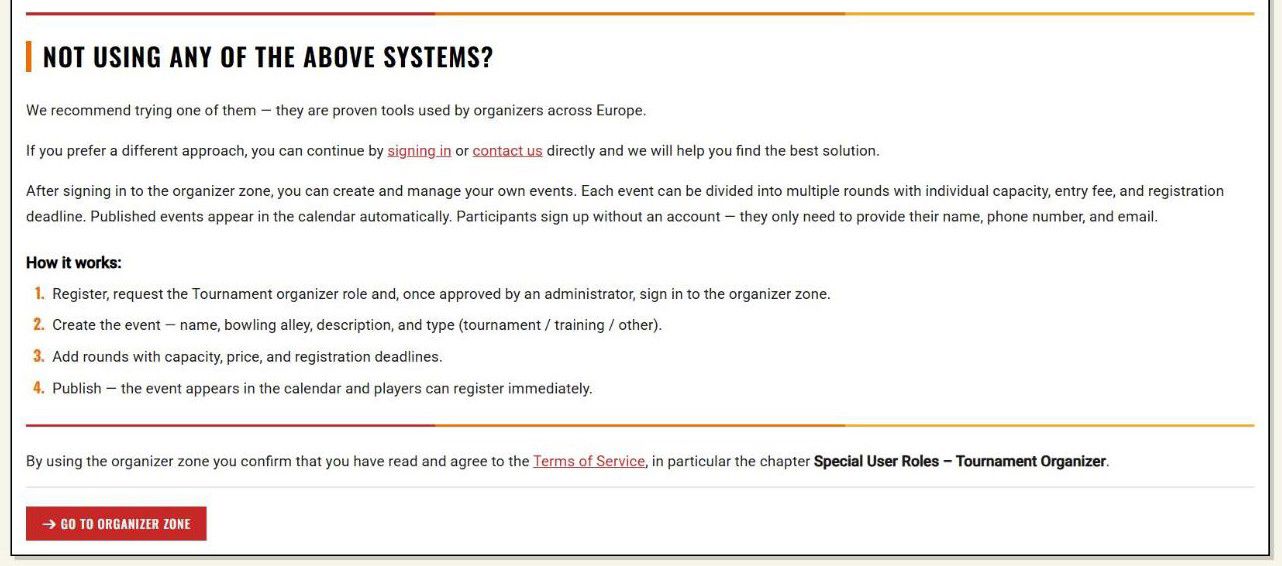
First, the page invites you to consider whether you need BOWLMINE as a registration system at all. It lists the systems from which BOWLMINE loads tournaments, and asks three questions:
- Already using one of these registration systems? Then you can let your events be shown in BOWLMINE from there.
- Your registrations are on your own website or another system? The page refers you to the Developer role and the IMPORTS feature.
- Not using any of the above systems? Then this guide is for you.
The page also summarizes the "How it works" procedure in four steps: register and request the Tournament organizer role, create the event, add rounds, and publish. The bottom part differs depending on your account:
- You have the Tournament organizer role: the Go to organizer zone button.
- You are signed in but do not have the role: a yellow message "Access requires the Tournament organizer role." followed by "To get the Tournament organizer role, go to the Request role page." with the link Request role.
- You are not signed in: the Sign in and Register buttons.
Below that is a sentence about agreeing to the Terms of Service (the chapter "Special User Roles – Tournament Organizer").
2.2 Requesting the role
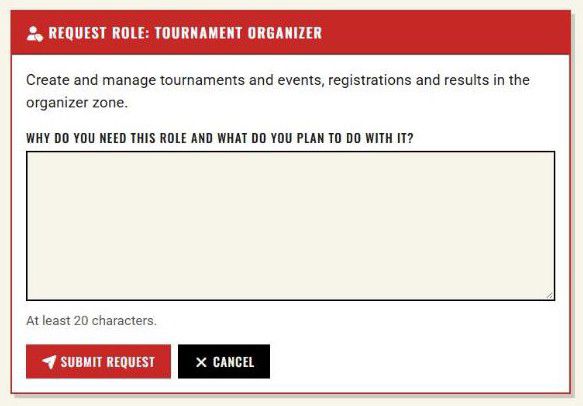
In the field "Why do you need this role and what do you plan to do with it?" write briefly and specifically what you organize and where. The text must be at least 20 characters long. Send the request with Submit request. After the administrator approves it, sign in to the organizer zone.
Tip: A good request reads something like "I run monthly singles tournaments and Tuesday youth training sessions at XY Bowling Center and want to manage sign-ups and results here." A request such as "I want to organize" is harder to assess.
2.3 Organizer profile
Before you create your first event, BOWLMINE asks for the organizer's contact details: Full name, Email and Phone. You save them with Save profile. Without a profile you cannot continue creating events.
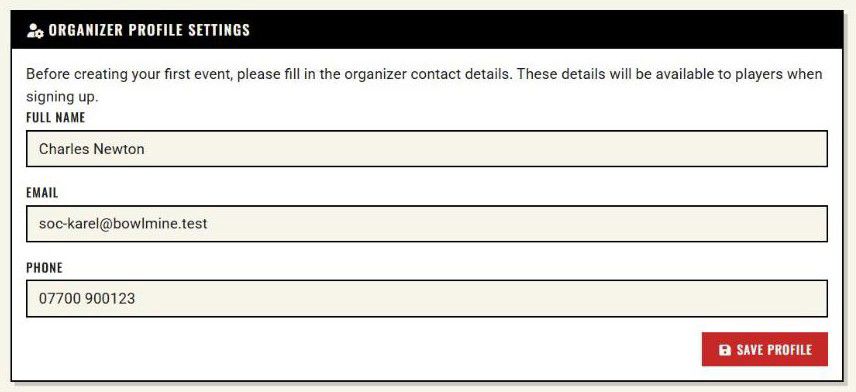
The profile details are pre-filled into every new event and shown to players on the event. You can overwrite them for a specific event (see chapter 11, the party with a different contact name). You can also change them later.
Careful, these details are public. The organizer's name, phone and email can be seen by anyone who opens the event page. If you do not want to publish your personal number, use the phone of the bowling center or club.
2.4 Organizer zone: events overview
You will find the organizer zone in the My board menu (the Events tab).
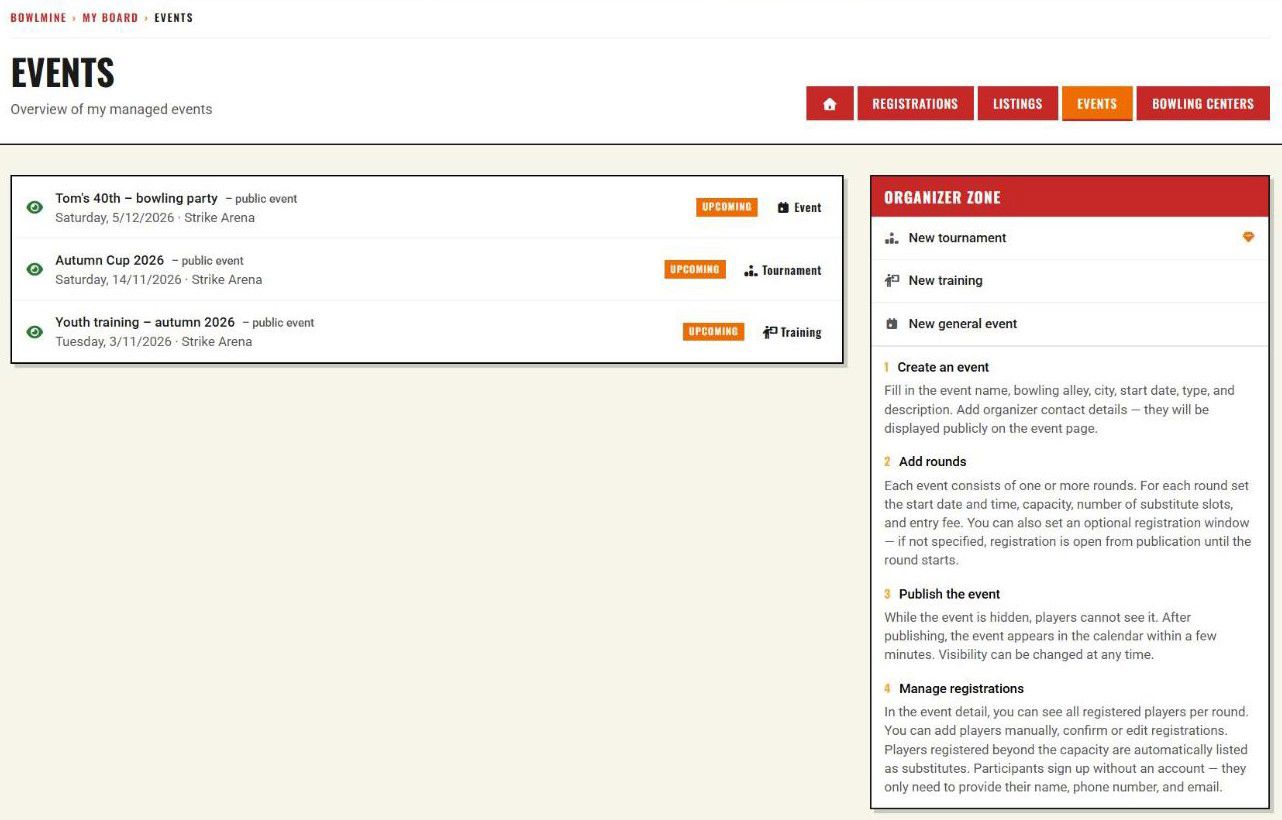
What you see on the page:
- A list of your events. Each row has the form "name – public event / hidden event / private event", with the date and bowling center below it. The label on the right shows the status (Upcoming, Past) and the event type (Tournament, Training, Event).
- The Organizer zone box with the links New tournament, New training and New general event. The diamond icon next to New tournament marks a paid feature ("Paid feature"); you will find the current terms under Pricing.
- A short procedure in four steps: create an event, add rounds, publish the event, and manage registrations.
Question: Which type should I choose?
Answer:
| Type | When to use it | What is different |
|---|---|---|
| Tournament | A competition with results, qualifications and a final. | It additionally has subtypes (categories, format, structure, participants) that players use to filter the calendar. |
| Training | Regular sessions, courses, camps, youth training. | No subtypes; in the calendar it appears after switching the type to Training. |
| General event | Anything else: a party, a company event, a club meeting, a charity evening. | No subtypes; in the calendar it appears after switching the type to General event. |
Choose the type correctly right at the start. You cannot change it later: the edit form only displays the type, it does not offer a change. If you make a mistake, you have to create the event again.
3. Creating an event
Click New tournament. The new event form opens.
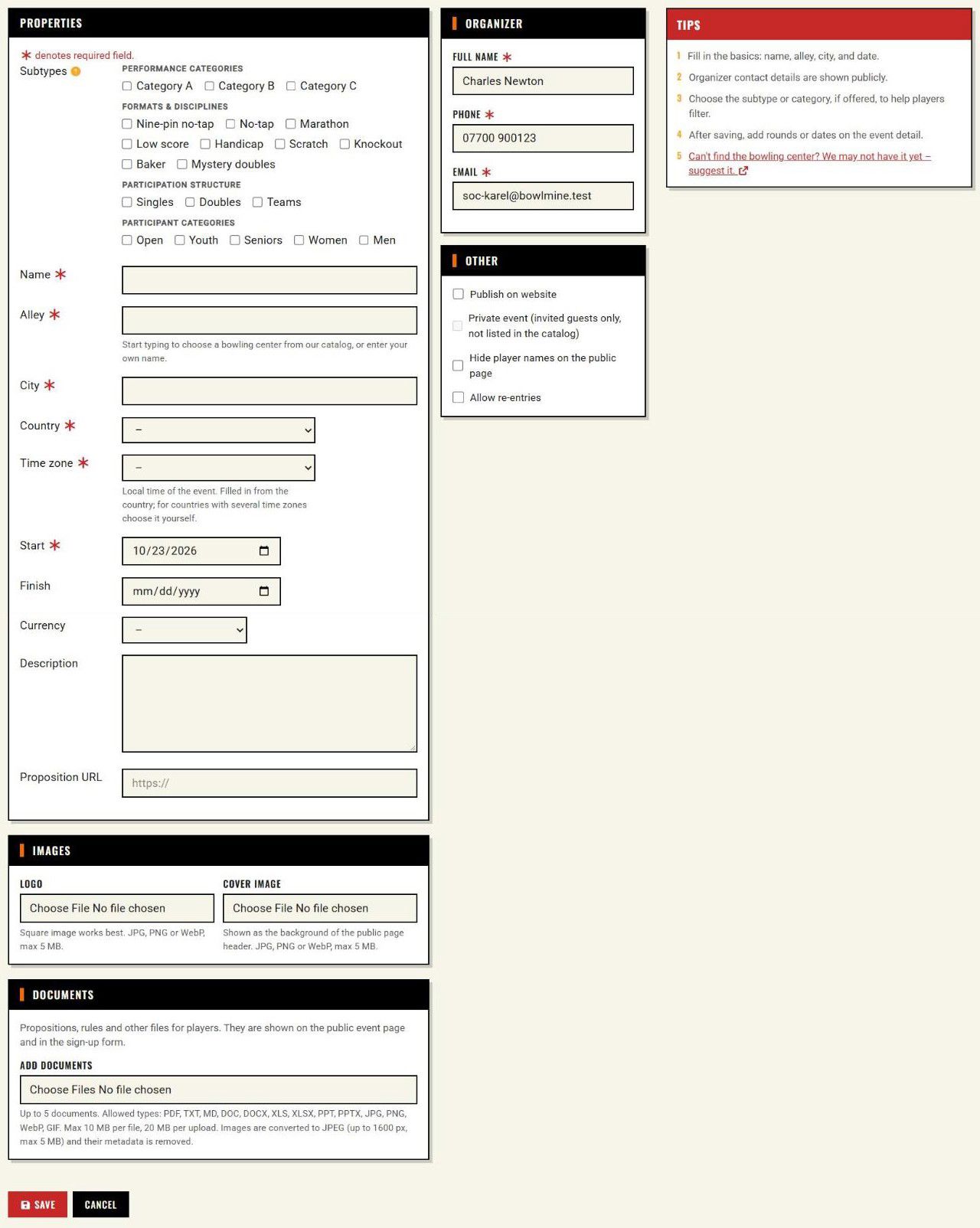
The form has the cards Properties, Images, Documents, Organizer and Other; Tips are on the right. The organizer contact is already pre-filled from your profile. Required fields are marked with an asterisk (the note "✱ denotes required field."): Name, Alley, City, Country, Time zone, Start and, in the Organizer section, Full name, Phone, Email.
3.1 Event form fields
| Field | Required | What it is for and what to watch out for |
|---|---|---|
| Subtypes | no | Tournament only (training and general events do not offer them). They help players find the tournament with a calendar filter. Groups: Performance categories, Formats & disciplines, Participation structure, Participant categories. Tick only what really applies. The question mark icon opens an explanation (the "Tournament subtypes" dialog). |
| Name | yes | Short and unambiguous, at most 100 characters. The year or edition belongs in the name ("Autumn Cup 2026"), the date does not, because it is displayed automatically. |
| Alley | yes | The name of the bowling center, see chapter 3.2. It is pre-filled into every new round. |
| City, Country | yes | For a bowling center from the catalog they are taken over and cannot be edited; for your own name you fill them in yourself. The country is used for the Countries filter in the calendar. |
| Time zone | yes | The local time of the event, see chapter 3.3. |
| Start | yes | The first day of the event. The default is today, always overwrite it. |
| Finish | no | The last day of the event. It must not be earlier than the event start or the start of the last round, and no round may start after the event end; the form guards this with the messages "The event end must not be earlier than the event start.", "The event end must not be earlier than the start of its latest round." and, for a round, "The round start must not be after the event end." Once the finish day has passed, the event is shown on the page as finished and registrations close. |
| Currency | no | The currency in which you state the entry fee. It is appended to the price (for example "25 GBP"). Without a currency, the price is shown as a bare number. |
| Description | no | What awaits players: format, number of games, advancement system, what the entry fee includes. Plain text, at most 1000 characters. |
| Proposition URL | no | A link to the propositions (PDF, website). It must start with http:// or https://, otherwise the form reports an error. |
| Full name, Phone, Email (Organizer) | yes | The contact person. Public. |
The Images card offers the Logo (preferably a square image) and the Cover image (shown as the background of the public page header); both JPG, PNG or WebP, at most 5 MB.
The Documents card is for propositions, rules and other files for players. They are shown on the public event page and in the sign-up form. A tournament can have at most 5 documents; allowed types are PDF, TXT, MD, DOC, DOCX, XLS, XLSX, PPT, PPTX, JPG, PNG, WebP and GIF, at most 10 MB per file and 20 MB per upload. Images are converted to JPEG (up to 1600 px, max 5 MB) and their metadata is removed.
The Other card contains four options:
- Publish on website: the event is visible in the calendar and players can sign up. We recommend leaving it unticked and publishing only after you have checked the rounds (chapter 5).
- Private event (invited guests only, not listed in the catalog): available only for a published event (while "Publish on website" is not ticked, it is disabled).
- Hide player names on the public page: players then see only counts. While the names are hidden, results cannot be published (chapter 10.4).
- Allow re-entries: one player may sign up for several rounds of the same event. Without re-entries, the sign-up form lets a player choose only one round. For training and general events the option is called Allow signing up for more rounds (chapter 11).
Question: Do I have to choose subtypes?
Answer: No. But a player who filters the calendar for, say, only Handicap or Seniors will not see your tournament without the right subtype.
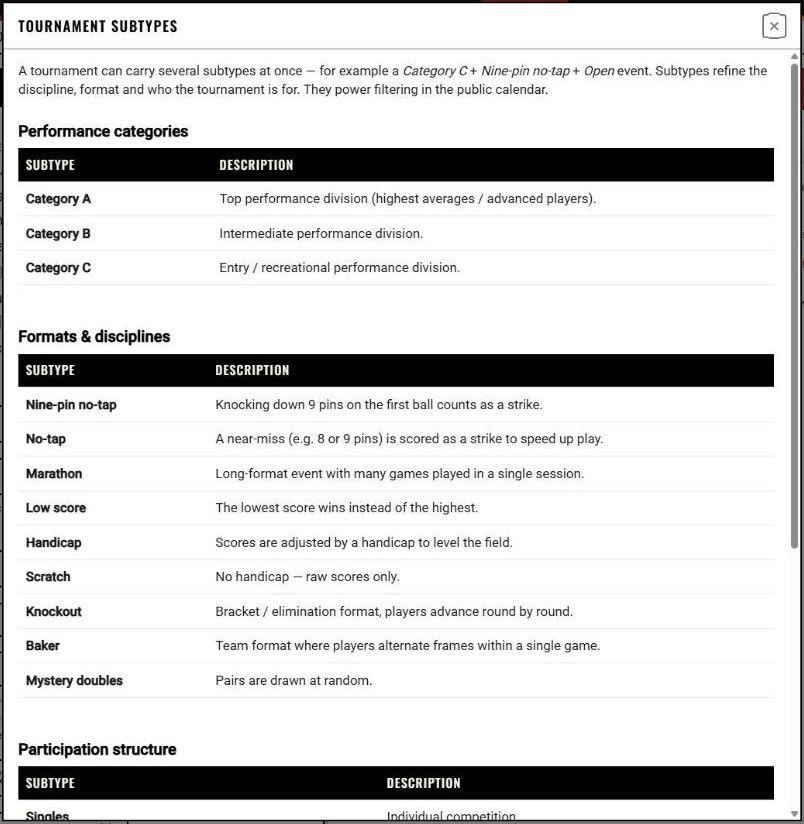
3.2 Bowling center: from the catalog or your own name
The Alley field is an autocomplete. Below it is the text: "Start typing to choose a bowling center from our catalog, or enter your own name."
A bowling center from the catalog. Start typing the name. The suggestions begin at 2 characters and offer bowling centers from the BOWLMINE catalog (name, city and country).
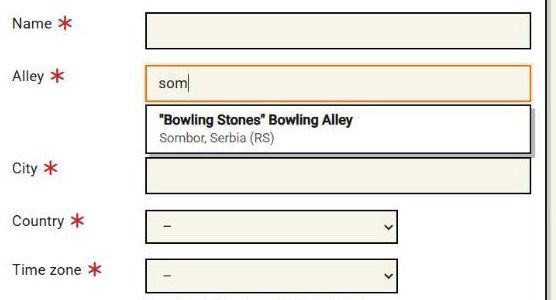
After you choose one:
- City and Country are filled in and both fields are locked,
- the Time zone is pre-filled from the bowling center (it stays editable),
- below the field the text "Selected from the catalog - city and country are taken from it and can't be edited." appears together with the Change bowling center button.
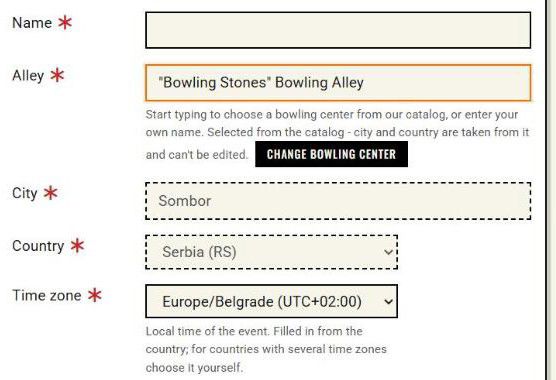
With Change bowling center (or by overwriting the name) you remove the link to the catalog; City and Country unlock and keep their current values.
Your own bowling center name. If the bowling center is not in the catalog (in our example Strike Arena), type the name yourself and fill in City and Country manually. Changing the country pre-fills the time zone.
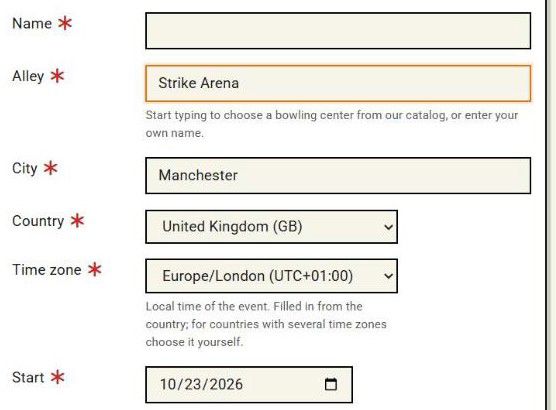
Can't find the bowling center? The catalog may not have it yet. In the Tips on the right there is the line "Can't find the bowling center? We may not have it yet – suggest it." (the link "suggest it" opens in a new window), which you can use to suggest the bowling center for the catalog.
3.3 Time zone
The Time zone is the local time of the event. The registration deadline and the round start are calculated in it, not in server time, so the times you enter for rounds are the local time of the bowling center.
The hint next to the field: "Local time of the event. Filled in from the country; for countries with several time zones choose it yourself." The field is required and stays empty (the value "–") until it is filled in. After you choose a bowling center from the catalog, the time zone of the bowling center is pre-filled. With your own name, changing the country pre-fills it; for a country with several zones the field is cleared and you choose the zone yourself. Zones have the form "Europe/London (UTC+01:00)".
3.4 When something is missing
If you submit the form without the required data, it comes back with the message "An error occurred while processing." and, under the missing fields, for example "The City field is required."
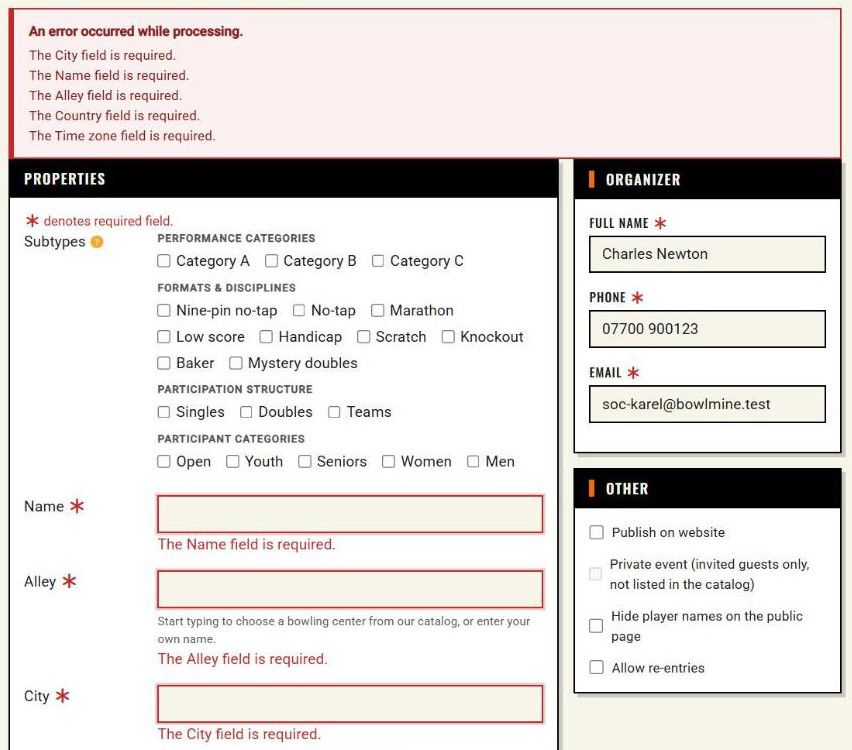
The values you filled in are kept; just complete the missing fields and submit again.
3.5 The completed form
This is what the form for our Autumn Cup looks like just before saving:
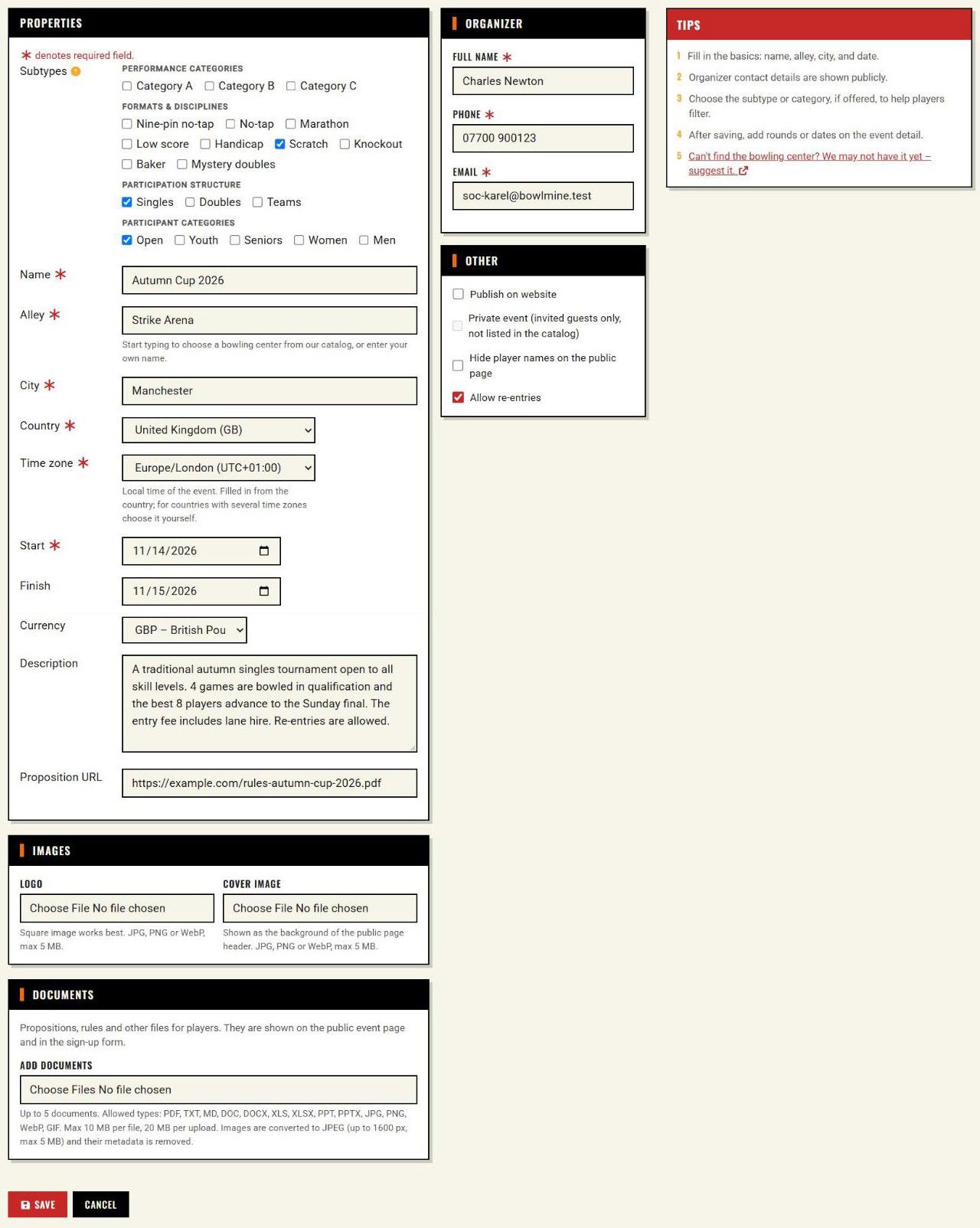
Notice:
- Alley is your own name "Strike Arena"; City, Country and Time zone are filled in.
- Subtypes describe the tournament the way players search for it.
- Start and Finish cover the whole weekend (qualification on Saturday, the final on Sunday).
- Allow re-entries is on: whoever does not advance in the Saturday morning session can try the afternoon qualification.
- Publish on website is not ticked yet. We will publish the tournament once the rounds are in order.
Click Save (next to it is the Cancel button).
3.6 Event detail
After saving, the event detail opens. You will come back here most often.
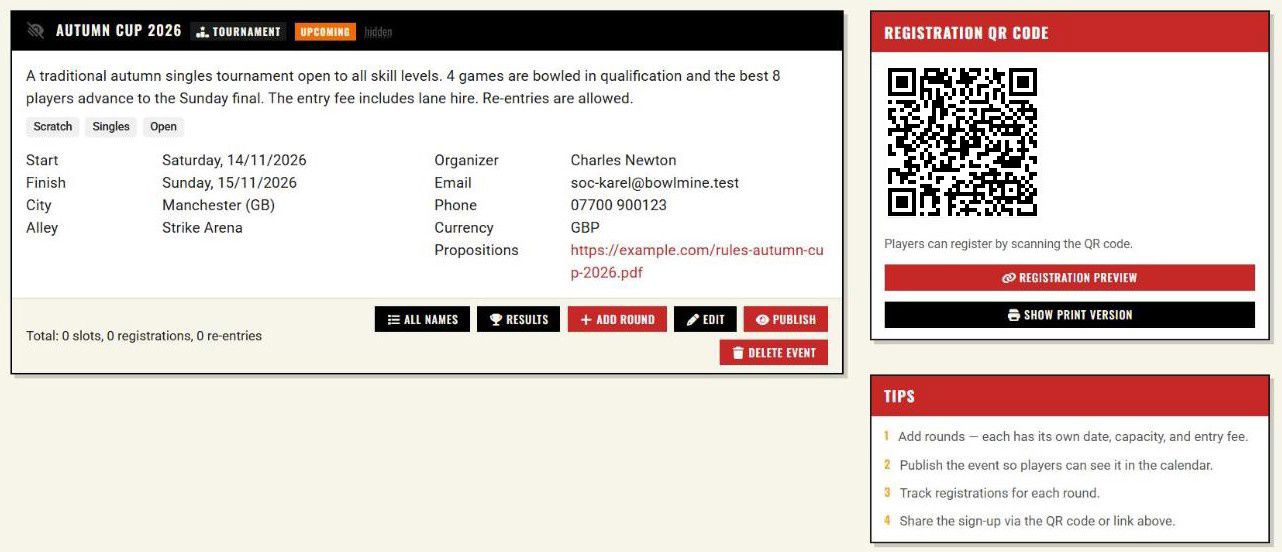
| Element | Meaning |
|---|---|
| Header | The visibility icon (green eye = published, crossed-out eye = hidden, lock = private), the name, labels for type (Tournament) and status (Upcoming, Ongoing, Past); for a hidden event the word "hidden", for a private one "private". |
| Summary | "Total: X slots, Y registrations, Z re-entries" across all rounds. Advancement rounds are not counted in the slots (you enter the players into them yourself). For training and general events the summary is "Total: X slots, Y registrations", without re-entries. |
| All names | An overview of all players across the rounds (chapter 8.4). |
| Results | Results of the whole tournament (chapter 10). |
| Add round | A new round (chapter 4). |
| Edit | Editing the event details. |
| Publish / Hide | Publishing the event, or withdrawing it from the public part. |
| Delete event | After confirmation, deletes the event, all its rounds, registrations and results. |
| Registration QR code | A QR code leading to the public event page. |
| Registration preview | A window with the public link to the event. |
| Show print version | A poster with a QR code and a list of rounds (chapter 9). |
4. Rounds: the heart of every event
Click Add round.
4.1 Round form
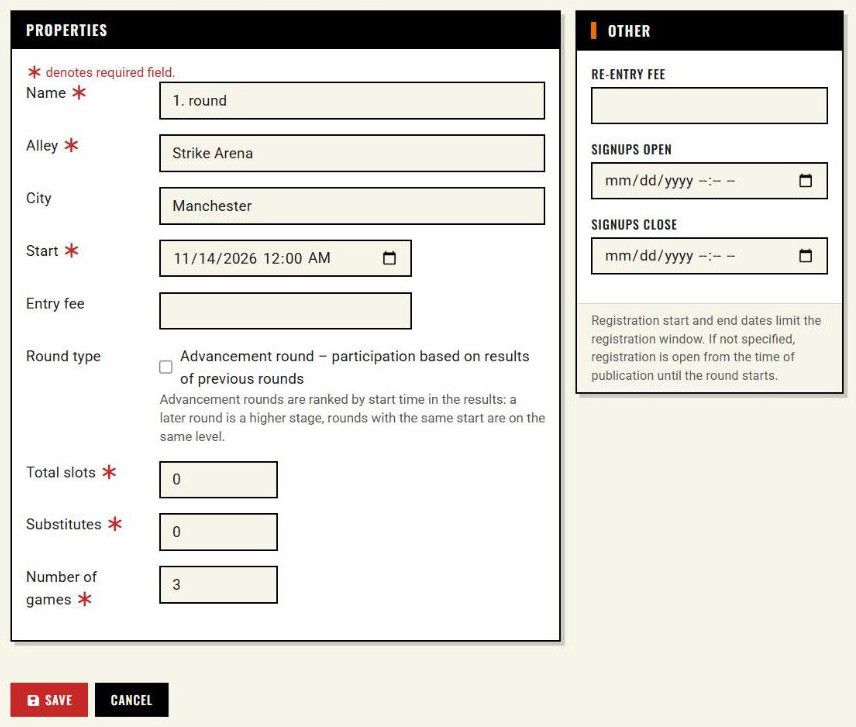
Always check the default values. The first round is named "1. round", starts on the event start day at midnight, has 3 games and Total slots = 0. Overwrite the capacity and the start time. Every further round takes over the values of the last round by start time: start, price, capacity, number of substitutes, number of games, re-entry fee, bowling center, city and Signups open and Signups close. The inherited registration window is easy to overlook, so go through it for every new round.
| Field | Required | What it is for and what to watch out for |
|---|---|---|
| Name | yes | A descriptive name is better: Qualification A, Final, Training 3 Nov |
| Alley, City | yes / no | Taken over from the event. Rounds can be at different bowling centers (for example a traveling league). |
| Start | yes | The date and time of the round start, in the local time of the bowling center. |
| Entry fee | no | Free text, not a number: "25", "free", "25 / juniors 15". The currency of the event is appended to the price. |
| Round type | no | The checkbox "Advancement round – participation based on results of previous rounds" (chapter 4.3). For a tournament, a note below it says that advancement rounds are ranked by start time. |
| Total slots | yes | The capacity: how many players play in the round (for example number of lanes × players per lane). At least 1. |
| Substitutes | yes | How many more registrations the round accepts on top of the capacity. |
| Number of games | yes | 1 to 99. It determines how many game columns the results table will have. |
| Re-entry fee | no | Shown only for an event with re-entries allowed and only for a round that is not an advancement round. For training and general events the field is called Price of each further round. |
| Signups open, Signups close | no | The registration window, see chapter 4.2. |
4.2 Registration window
Signups open and Signups close limit the interval in which players can sign up for the round. The times are entered in the local time of the bowling center (the time zone of the event).
- With both fields empty, registrations are open right after the event is published until the round starts. In the event detail and on the public page you will see "Registration until 3/11/2026 16:30".
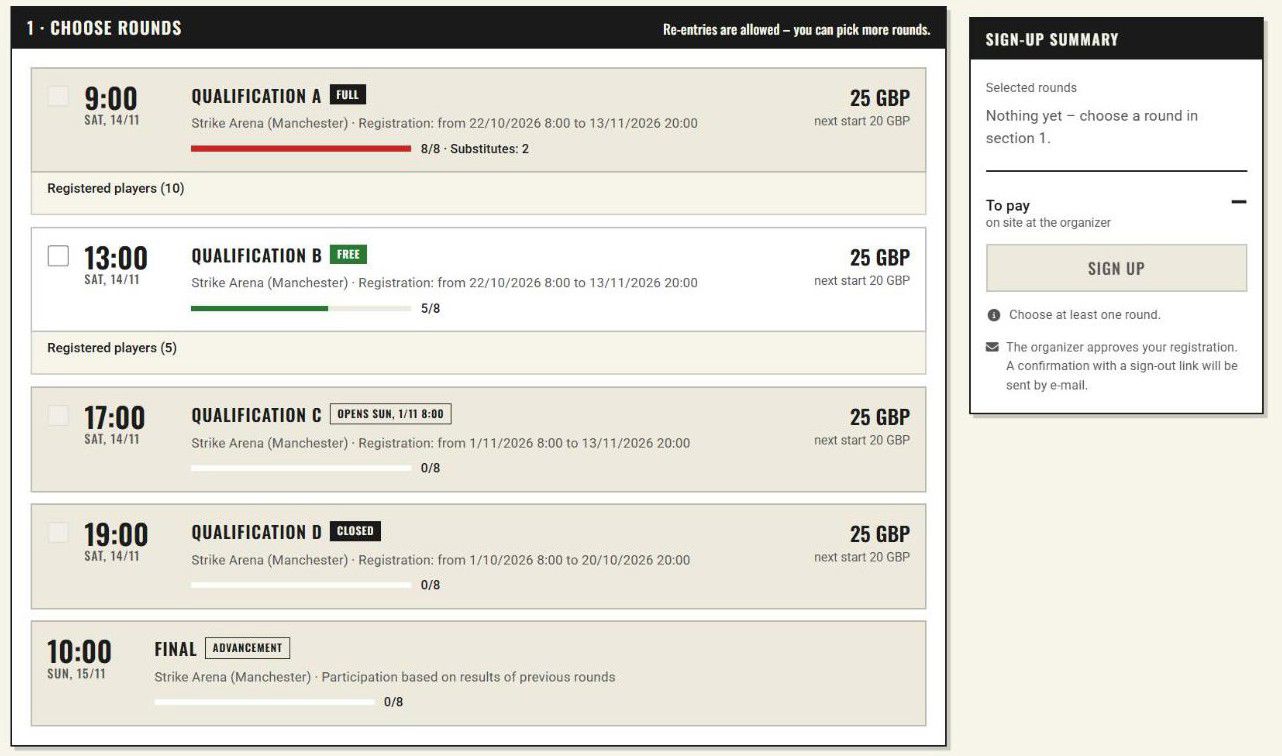
- With both fields filled in, registration follows the window: "Registration: from 22/10/2026 8:00 to 13/11/2026 20:00". For a round that is still closed, the player sees the label "Opens …", after the deadline the label "Closed", and the round cannot be ticked.
- The form guards two rules: "Registration end must not be after the round start." and "Registration end must be after registration start."
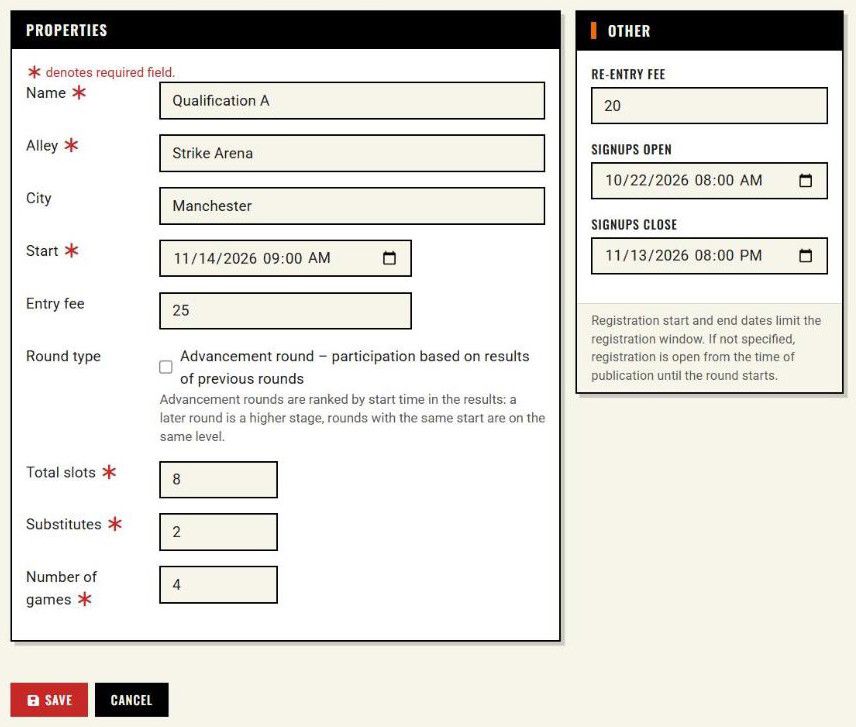
Qualification A: Saturday 14/11 at 9:00, 8 slots, 2 substitutes, 4 games, entry fee 25 GBP, re-entry fee 20 GBP. Registration is open from 22/10 8:00 until Friday 13/11 20:00, so the organizer has the lane schedules ready the evening before the tournament. We create Qualification B (Saturday 13:00) the same way.
Capacity and substitutes. On the public page the player sees the occupancy of the round (for example "8/8 · Substitutes: 3") and a status label: "Free", "Last spots" (at most 2 spots left), "Substitute" (the capacity is full, the player signs up as a substitute), "Full" (full including substitutes), "Opens …", "Closed" and "Advancement". With manual entry you can exceed the capacity (chapter 8).
4.3 Advancement round (Final)
The finalists are decided by the qualification results, not by registrations. For such a round, tick Advancement round – participation based on results of previous rounds. BOWLMINE has no special "final" round: the final, the semifinal and any other selection rounds are all advancement rounds.
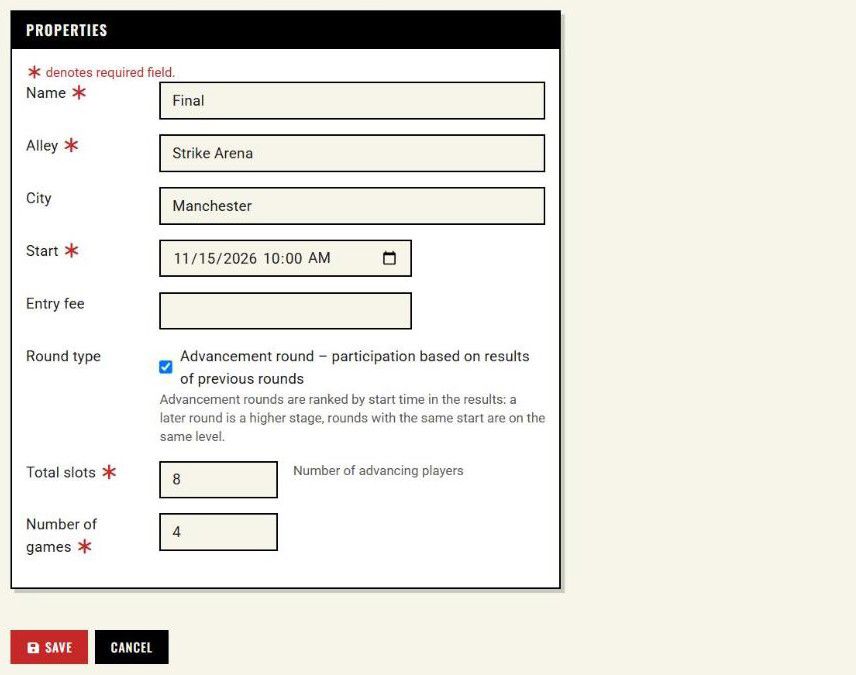
For an advancement round:
- Substitutes and the whole Other card (re-entry fee, registration window) disappear; an advancement round has no registration window, no substitutes and no re-entry price, and a start in it costs the price of the round,
- next to the Total slots field the text "Number of advancing players" appears,
- players do not sign up for the round and cannot tick it; on the public page the round has the label "Advancement", the line "Participation based on results of previous rounds" and an expandable "Advancing players (N)" list with the names (unless they are hidden),
- you enter the players manually on the Registrations page (chapter 8.3),
- the round is not counted in the free spots in the header of the event page, in the "Total: … slots" summary, or in the amount to pay in the sign-up.
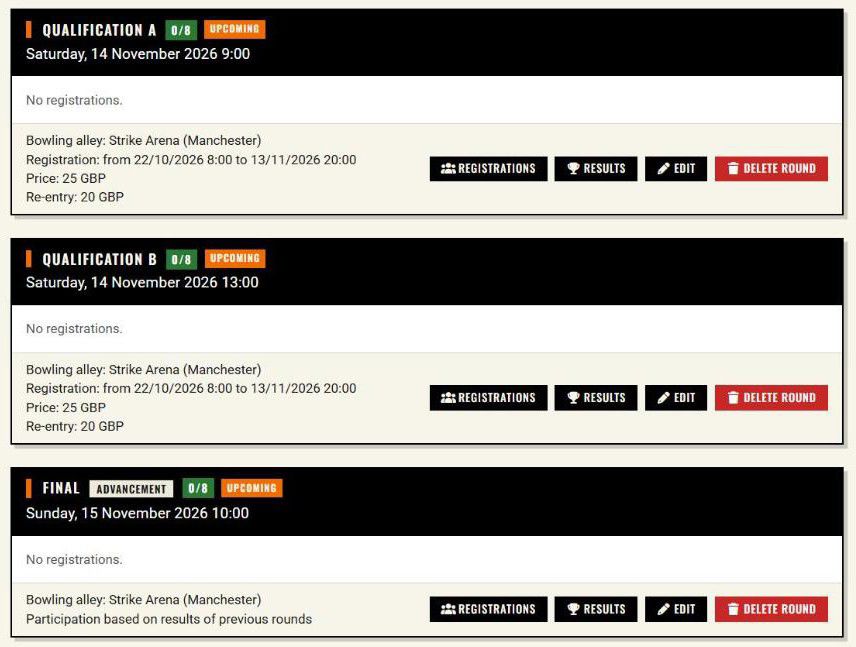
In the event detail, the round name carries the label "Advancement" and the line "Participation based on results of previous rounds".
Several advancement rounds and stages. In a tournament, the order of stages is determined by the start of the round: a later start means a higher stage, and rounds with the same start are one level. A semifinal on Saturday at 16:00 and a Final on Sunday at 10:00 therefore form two stages, and in the overall ranking the finalists rank above the semifinalists. When creating them, check that the Final starts later than the rounds before it. How the overall ranking is built from the stages is described in chapter 10.3. For training and general events, advancement rounds are not distinguished in the ranking.
Question: How many rounds can I have?
Answer: The number of events, rounds per tournament and slots per round is limited by your subscription. If you exceed it, the event or round is not saved and a message appears, for example "Event limit reached for your subscription.", "Round limit reached for your subscription." or "Slots + Subs (N) exceed subscription limit (N)." You will find the terms under Pricing.
Question: Can I change a round later?
Answer: Yes, by editing the round in the event detail. Players beyond the capacity automatically become substitutes.
5. Publishing and sharing
5.1 Preview before publishing
The Registration preview button opens a window with the public link to the event ("Public registration link for this event:"):
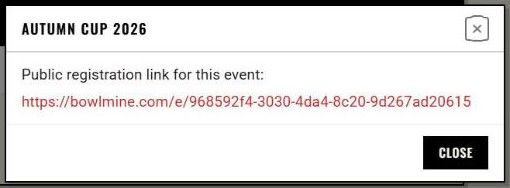
The link has the form bowlmine.com/e/<identifier>, where the identifier is a long code (not the event number). While the event is hidden, only you can see the page, with the message at the top "The event has not been published yet and is only visible to the organizer." Everyone else gets a "Page not found" error (404).
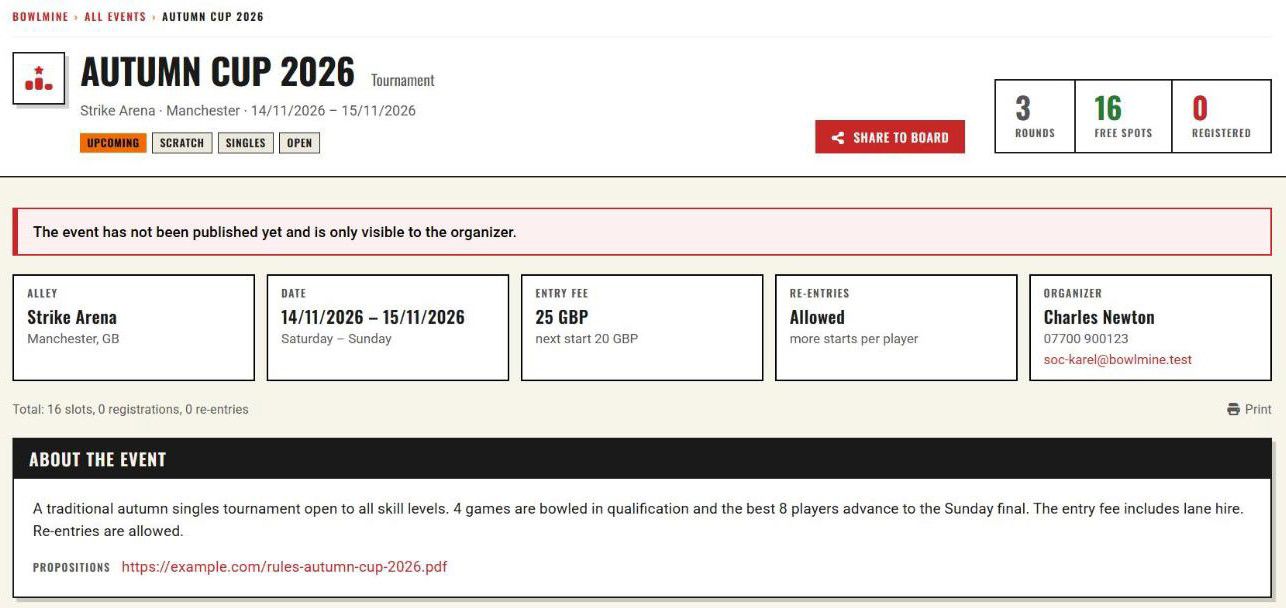
On this page, check what players will see: the description, contact, propositions, and the prices and registration windows of every round.
A hidden event does not accept registrations. For a hidden event the sign-up form is not shown at all. If you want an event "for invited guests only", use the Private event option (chapter 11.3).
5.2 Publishing
In the event detail, click Publish. The eye icon turns green and the button changes to Hide.
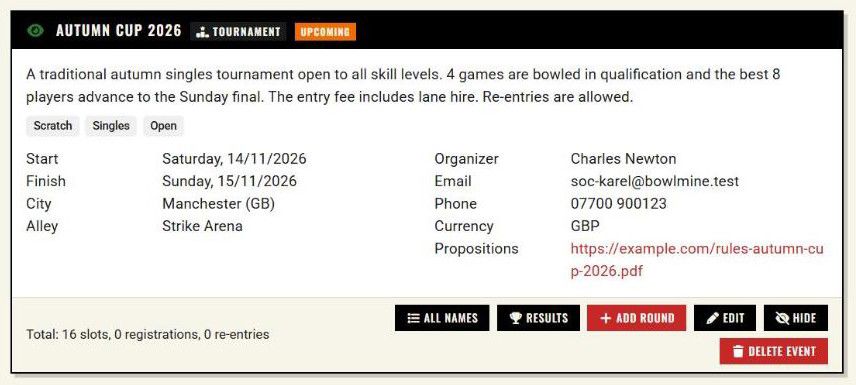
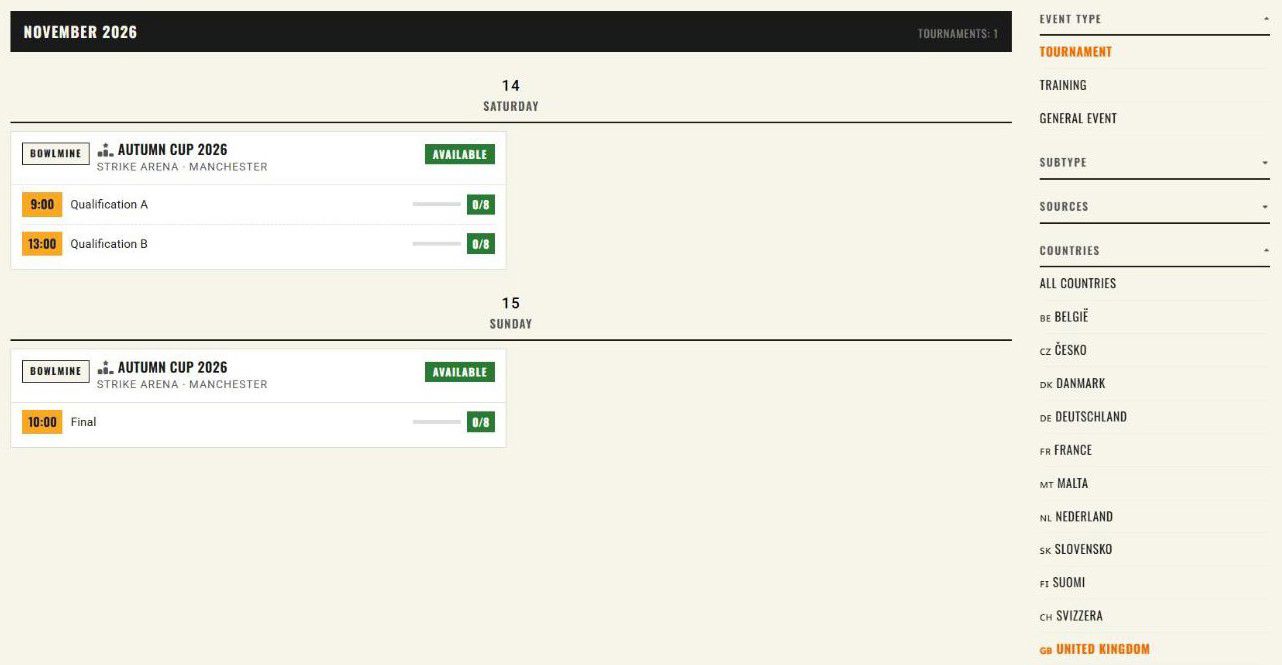
In the event calendar the event appeared immediately after publishing. The calendar sorts events by day. In the default view you see only tournaments; the type is switched in the side panel Event type (Tournament, Training, General event). Other filters are Sources, Countries and, for tournaments, Subtype.
5.3 Sharing
- Print the QR code from the event detail on a poster for the bowling center, or put it in a social media post.
- Send the link
bowlmine.com/e/<identifier>by email or to a club group. The link/p/<identifier>also redirects to the sign-up form. - Share to board on the public event page opens a dialog where you add a text and choose the visibility (Public or Friends only).
- Add to calendar: the event page also offers a
.icscalendar file.
Question: I published the event, but I can't see it in the calendar.
Answer: Check the calendar filters: the default view shows only tournaments, so you will see a training or a general event only after switching the type. A private event never appears in the calendar.
6. Player sign-up on the event page
This chapter shows what the player sees and does. As an organizer you need to know it so you can advise players. Sign-up takes place directly on the event page (/e/<identifier>, anchor "#prihlaska"), not on a separate page.
6.1 The event page
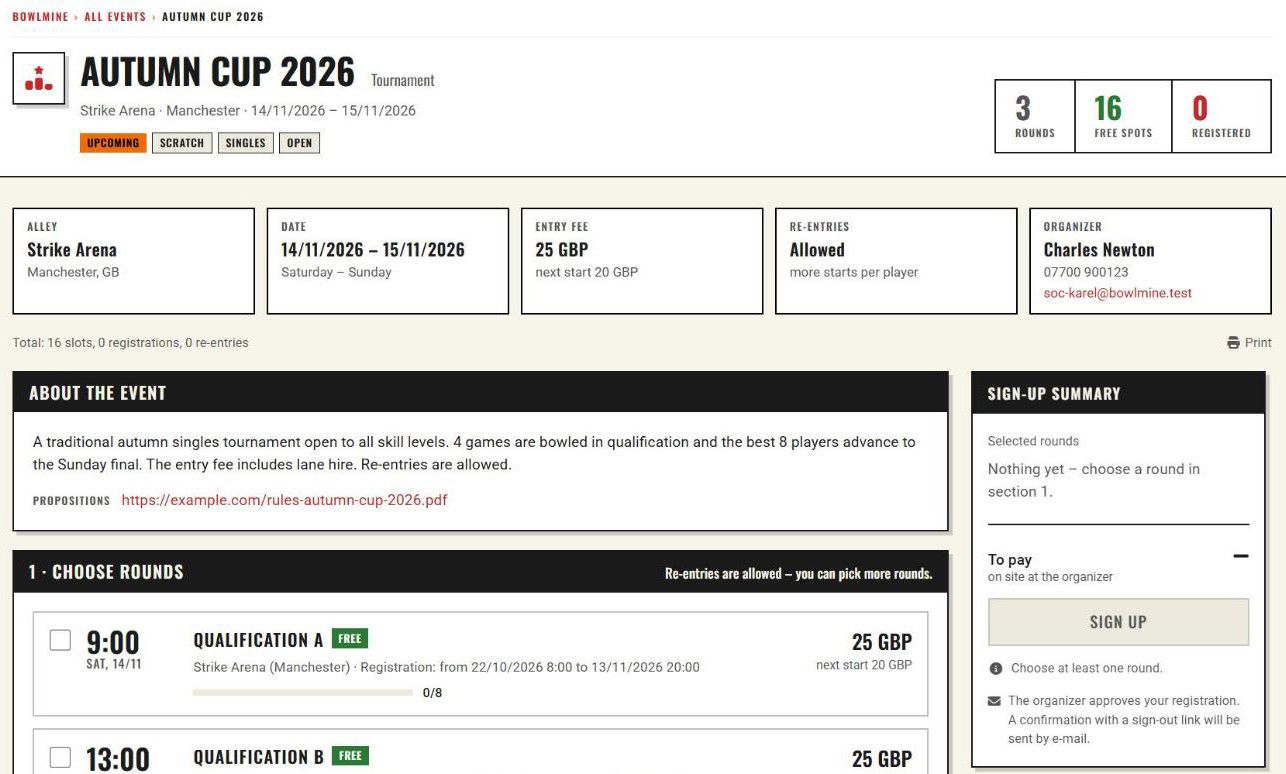
The player sees the name and type of the event, the bowling center, city and dates, the status (Upcoming, Finished), the subtypes, the counts (rounds, free spots, registered), the entry fee card (for example "25 GBP", "next start 20 GBP") and, for a tournament with re-entries allowed, the "Re-entries" card too (for training and general events this card is not shown), the organizer contact, the description, the propositions and a row with the "Print" link. The sign-up is below that.
Players' names are public unless you prevent that with the option Hide player names on the public page. The player then sees "Player names are hidden by the organizer." Tell your players, especially for events with children and for private events.
6.2 The three steps of sign-up
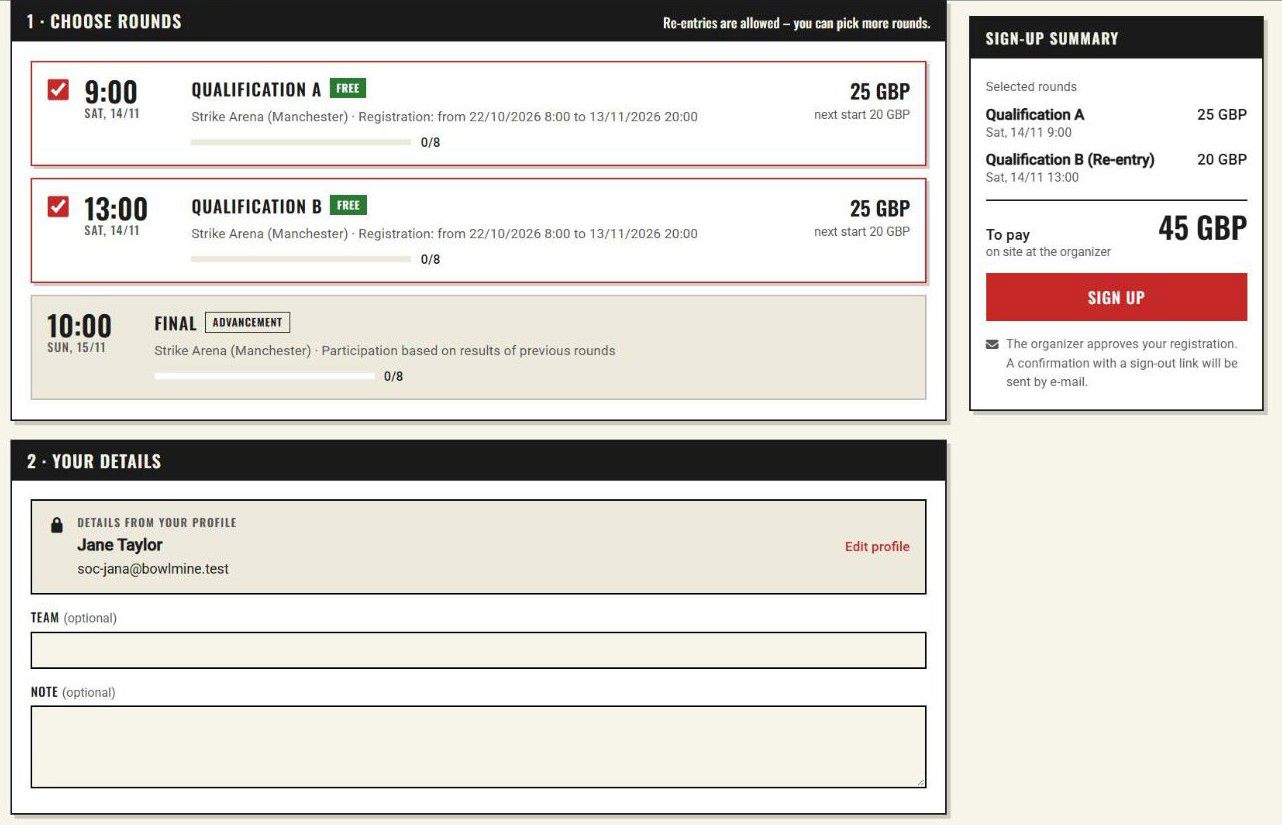
1 · Choose rounds. The text "Re-entries are allowed – you can pick more rounds." (for training and general events "You can pick more rounds."; when selecting more rounds is not allowed, "Pick one round."). A round tile shows the time and day, the name, the status label, the bowling center, the registration window, the occupancy (for example "0/8"), the price and an expandable "Registered players (N)" list with the names of the registered players.
2 · Your details. A signed-in player sees the block "Details from your profile" (with the link "Edit profile") and fills in only "Team (optional)" and "Note (optional)". A player without an account fills in "First name", "Last name", "Email" and, optionally, "Phone", "Country", "Team" and "Note".
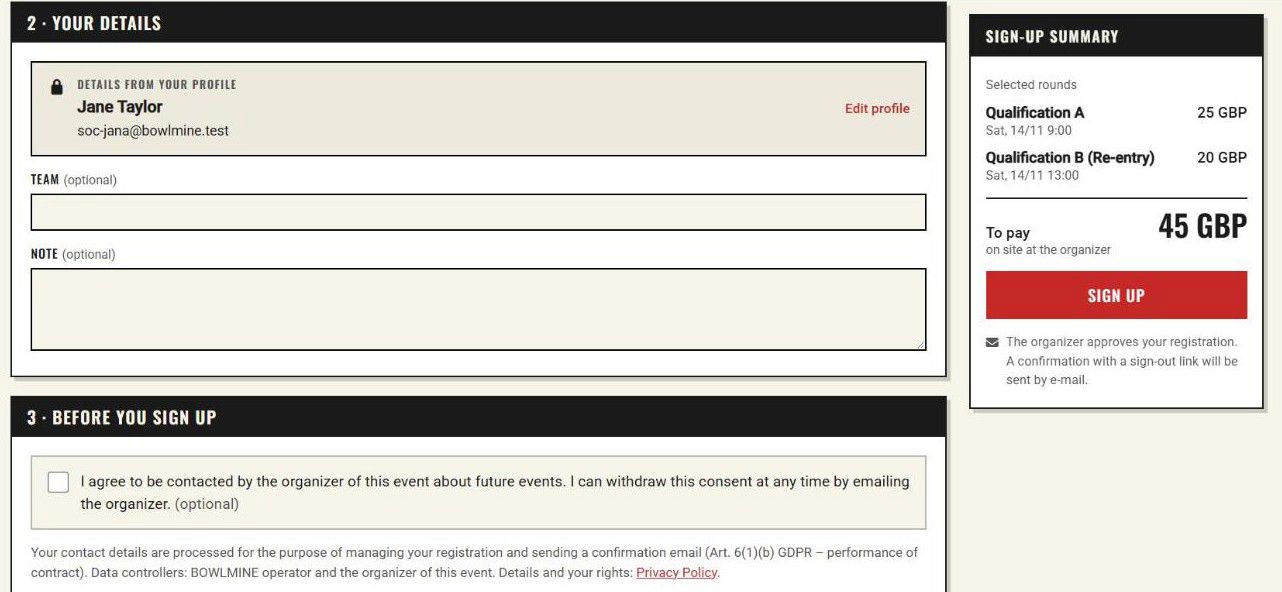
3 · Before you sign up. An optional checkbox "I agree to be contacted by the organizer of this event about future events. I can withdraw this consent at any time by emailing the organizer." and information on the processing of personal data.
Sign-up summary. It shows the selected rounds and the amount "To pay" ("on site at the organizer"; for two rounds, for example, 45 GBP: 25 for the first start and 20 for the further start; for a tournament the further start is marked "(Re-entry)" in the summary, for training and general events it is not marked). Substitute registrations are not included in the amount. The registration is sent with the Sign up button. The player's page notes that the organizer approves the registration, that a confirmation with a sign-out link will be sent by email, and that the entry fee is paid on site to the organizer.
Below the sign-up there are "Frequently asked questions" for players (signing up as a substitute, signing up for more rounds, for a tournament "How is the overall ranking decided?", and signing out). The answer about the ranking follows the settings of your event (chapter 10.3).
6.3 The page after sign-up
After submitting, the page "Registration submitted" appears: "Your registration has been received. We have sent a confirmation to …" and three steps:
- Check your e-mail. The confirmation contains a sign-out link for each round.
- The organizer approves your registration. Until then your registration awaits confirmation.
- Pay the entry fee on site. The amount is in the summary.
There are also the buttons Back to the event and Add to calendar, and the block "Your registration" with the rounds and the amount.
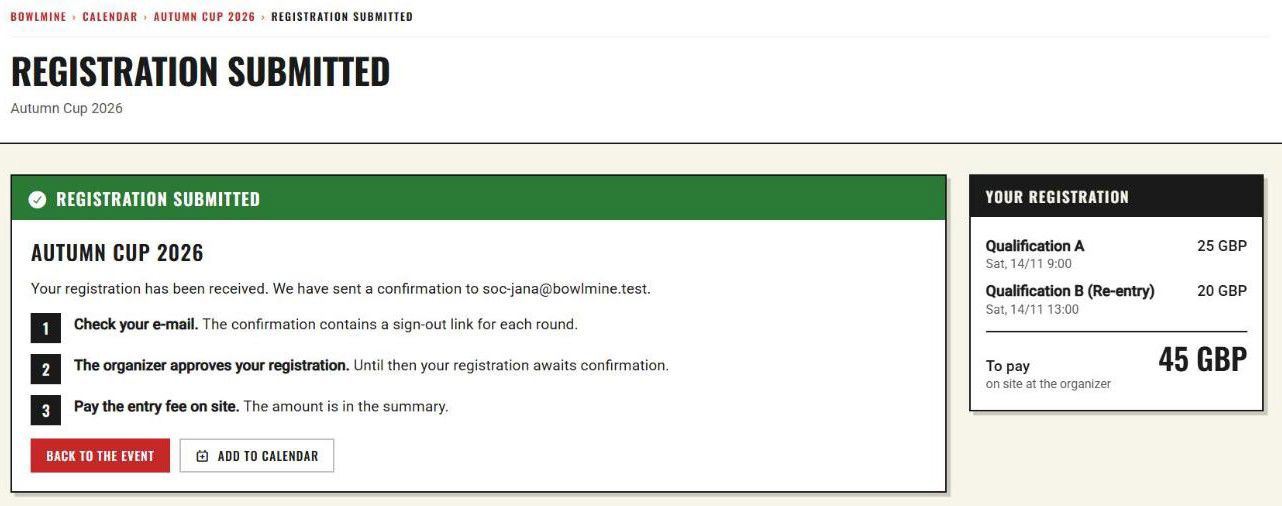
A registration from the web is not approved on the organizer's side; you approve it in registration management (chapter 8).
6.4 Full round, substitute, closed round
When the capacity of a round is used up but spots for substitutes remain, the round has the label "Substitute" and the text "The capacity is full – you will sign up as a substitute." In the summary, the round is marked "Substitute".
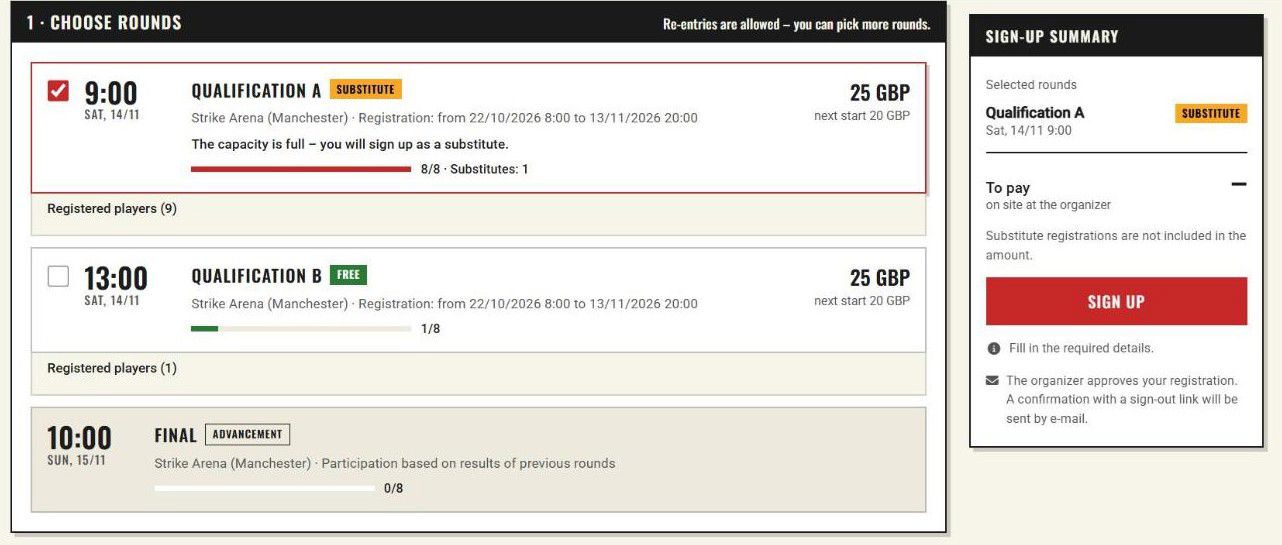
A round outside the registration window has the label "Opens …" or "Closed" and cannot be ticked.
6.5 Messages players will come to you with
| Message | What it means | What to advise |
|---|---|---|
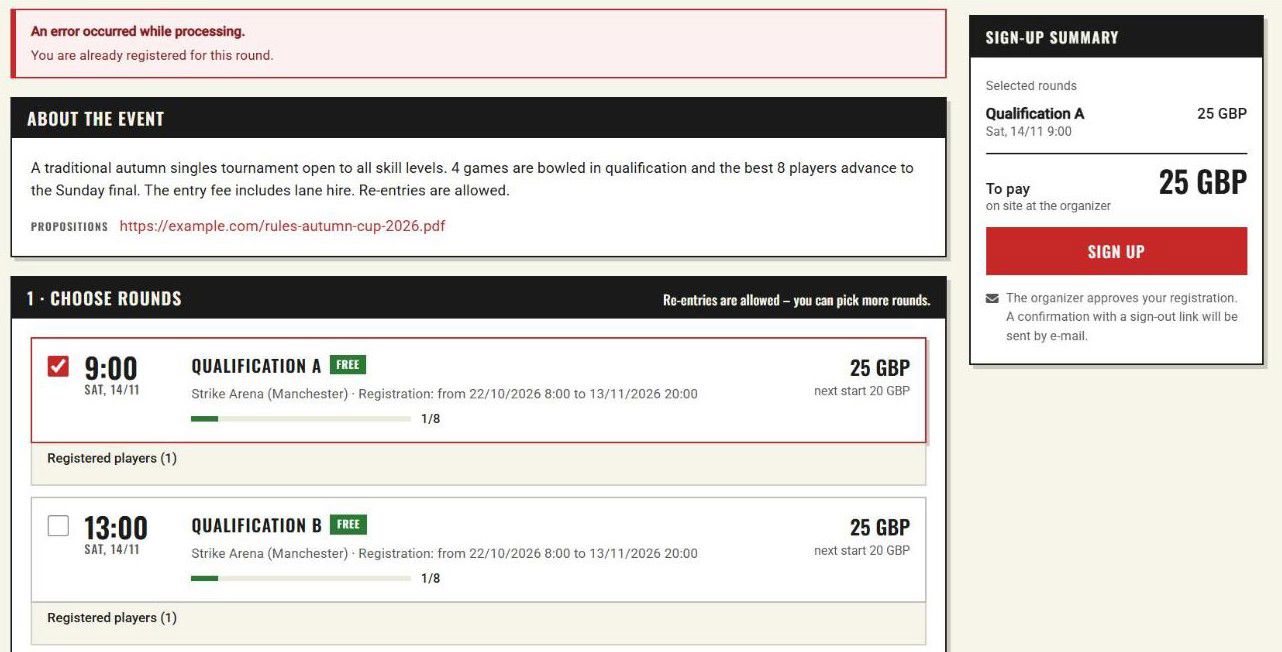
| You are already registered for this round. | The round already has a registration with the same first and last name and, at the same time, the same email (or from the same account). | If it is a different person sharing an email (a father and son on a family address), enter the second one manually, or have them sign up with their own email. |
| You are already registered for another round of this event. Re-entries are not allowed. (for training and general events You are already registered for another round of this event.) | The event does not allow re-entries (for training and general events, signing up for more rounds) and the player is already in another round. | The player has to cancel from the original round, or you allow re-entries (signing up for more rounds). |
| This round is already full. | In the meantime the capacity and the substitute spots have both filled up. | Offer another round, or enter the player manually. |
| Registration is closed for this round. | The registration window has not started yet, or has already ended. | Check Signups open / Signups close (chapter 4.2). |
| Security check failed. Please try again. | The security check did not pass. | Reload the page and submit again. |
6.6 On mobile
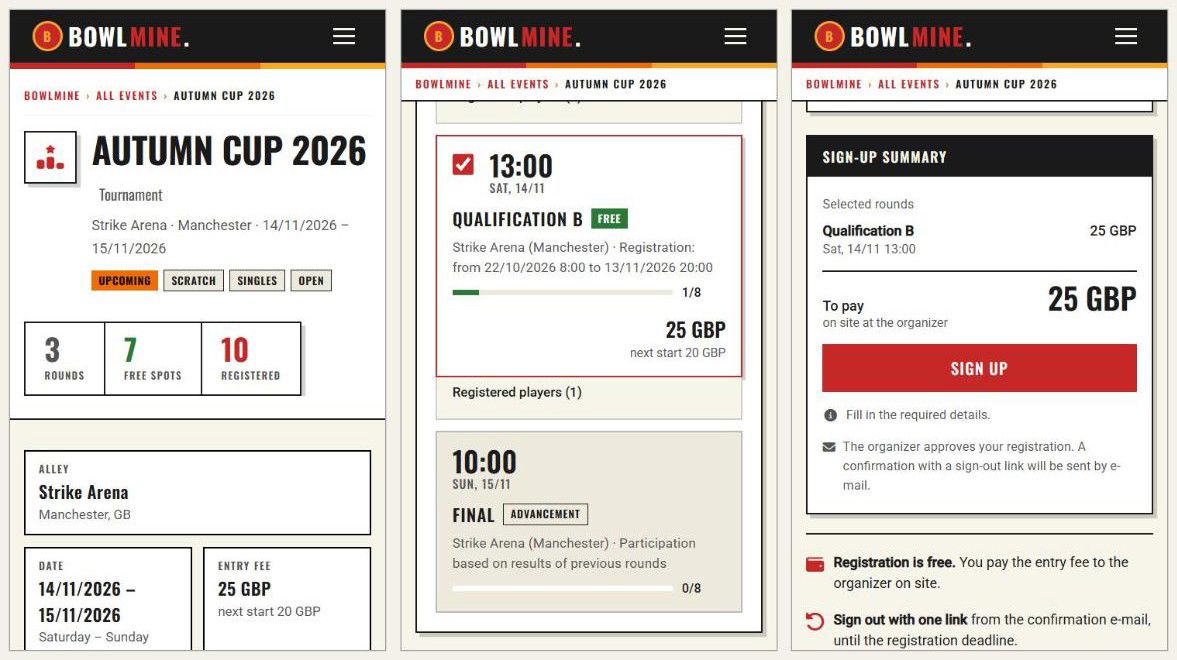
Most players sign up from a phone, typically via the QR code at the bowling center. On a narrow screen the page stacks the header with the counts, the event description, round selection, details, consent and the summary with the Sign up button.
Question: In which language will the player see the page?
Answer: In the language of their browser, or in the language they set in BOWLMINE.
7. Canceling a registration
A player cancels with the link from the confirmation email, which is different for each round. A page opens with the question "Do you really want to cancel your registration?" and the buttons No, I don't want to cancel and Yes, I want to cancel. After the cancellation the page shows "Cancellation was successful."
- The player can cancel on their own until the registration deadline. After that the page says "Registration is closed." and offers your contact (name, phone, email).
- After the event has been played, the page says "The event has already been played, cancellation is not necessary."
- If the round is full and has a substitute, the substitute moves up into the freed spot automatically after someone else cancels (according to the text on the event page).
Question: A player wants to cancel after the deadline, or lost the email.
Answer: Delete their registration yourself in the player detail (chapter 8.2), with the Delete button.
8. Managing registrations and manual entry
Not every player signs up on their own. Some call, others write their name on paper at the bowling center. In the event detail, for the round, click Registrations.
8.1 List of registrations for a round
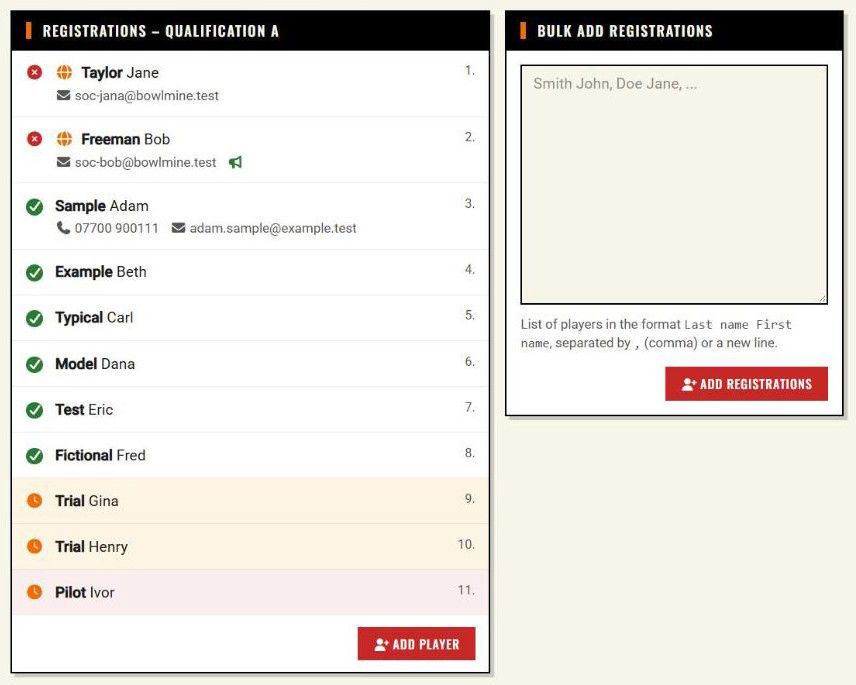
Players are sorted and numbered by the time of registration. Next to the names there are icons and details:
| Icon | Meaning |
|---|---|
| check mark (title "Approved") | the registration is approved |
| red circle with a cross | the registration is waiting for approval (registrations from the web arrive unapproved) |
| clock (title "Substitute") | a substitute |
| globe | the registration came from the web (the player signed up on their own) |
| megaphone | the player agreed to be contacted about future events ("Marketing consent") |
You also see the player's note, phone and email. A yellow-orange background marks a substitute; a red-pink background marks a registration beyond the capacity (slots + substitutes) that can only be created by manual entry.
Question: What exactly does "approving" a registration mean?
Answer: It is your confirmation that you are counting on the player, typically after the entry fee is paid. On the public page, an unapproved registration is marked "Not approved" in the round's list. You approve in the player detail by ticking Approved.
Question: How does a substitute get a playing spot?
Answer: The order is determined by the time of registration. Players beyond the capacity are automatically substitutes. A spot freed by a cancellation or a deleted registration is taken by the next substitute in the order.
8.2 Editing a player
Click the player's name to open their registration:
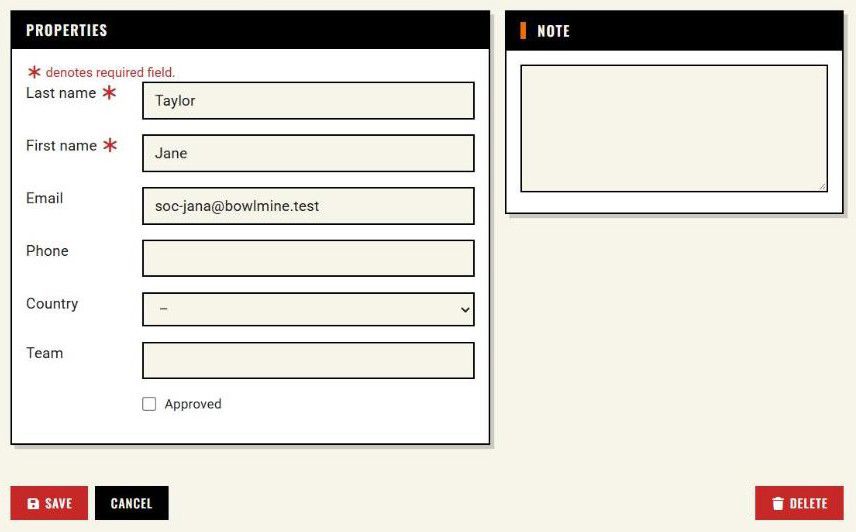
You can correct the Last name, First name, Email, Phone, Country and Team, confirm the registration by ticking Approved, and add a Note. The Delete button removes the registration after confirmation, including the player's results.
8.3 Manual entry
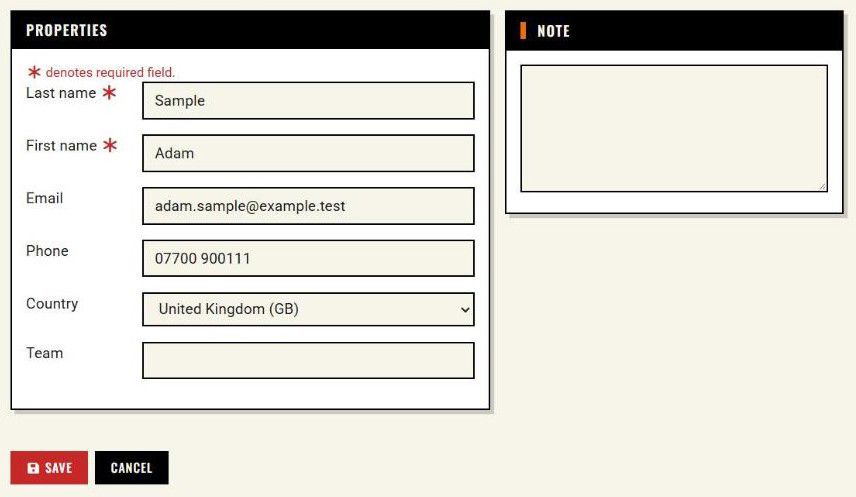
One player. The Add player button (below the list) opens a form with the fields Last name, First name, Email, Phone, Country, Team and Note. The player is approved automatically. After saving, "Player added: …" appears and you return to the list of registrations.
Several players at once. In the Bulk add registrations field write the names in the format Last name First name, separated by a comma or a new line, and click Add registrations.
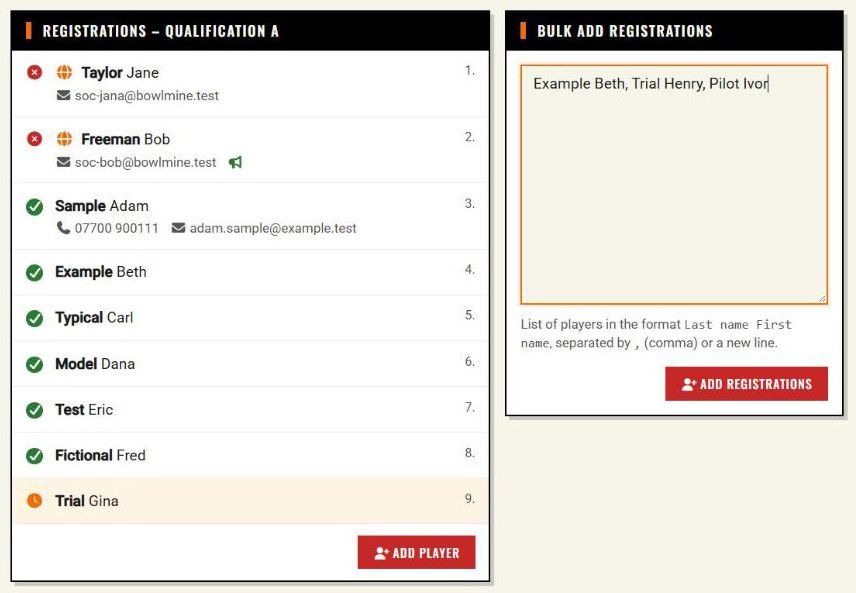
After submitting, you return to the list of registrations with messages:
- "Players added: N.",
- "Added, but a player with a similar name is already registered (it may be a different person): …", if the name matches a player from the web (who has an email or phone) or differs only in letter case; the player is added,
- "Already registered in this round, not added: …", if the name matches exactly a player entered without an email and phone (typically an earlier manual entry); such a player is not added,
- "The number of registrations (11) exceeds the round capacity (10).", if the entry exceeds the capacity including substitutes.
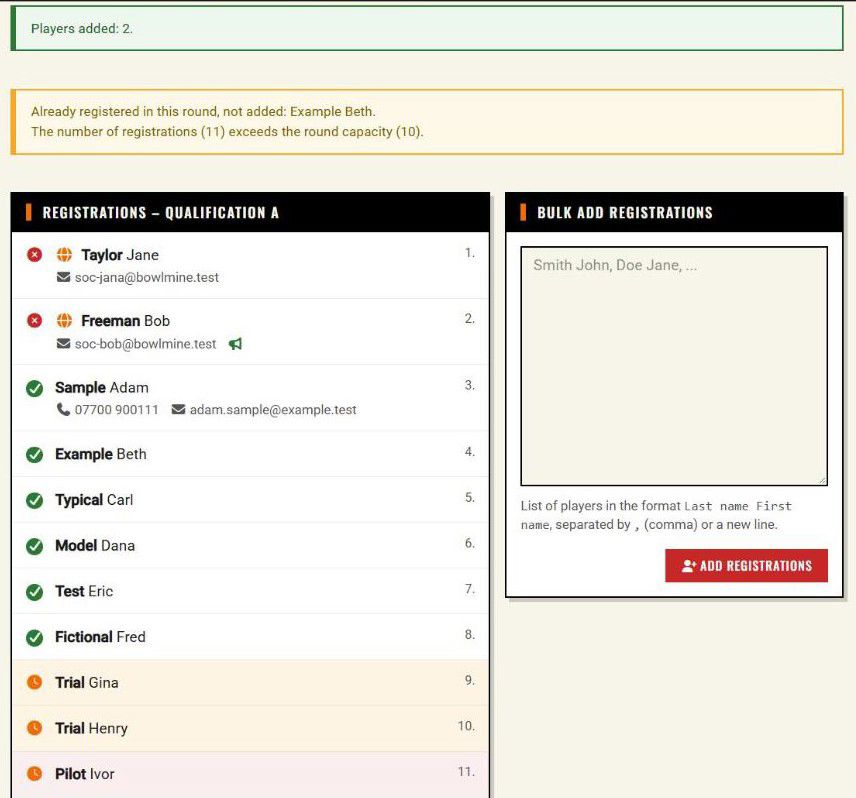
Good to know:
- The order matters. The first word is the last name, the rest is the first name. "John Smith" would be saved as the last name John. The correct entry is "Smith John".
- Players added in bulk are approved right away, but their email and phone are empty. If you need the contact, add it in the player detail, or use the single-player entry.
- After submitting, a redirect follows, so refreshing the page (F5) does not submit the form again.
- Manual entry does not guard the capacity: you can enter players even beyond the slots and substitutes. The limit of your subscription does stop the entry, however, and shows a red message.
Advancement round. You enter the finalists into an advancement round (the Final) the same way, on the Registrations page of that round: Add player or Bulk add registrations. There is no special selection from the results; you copy the names over from the qualification results.
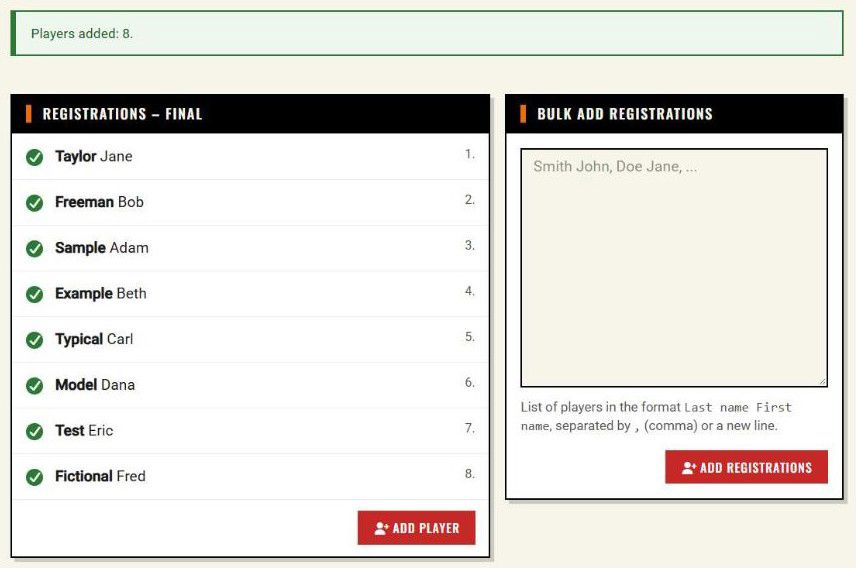
8.4 All names
The All names button in the event detail opens the "Name overview" dialog with a summary of players across all rounds:
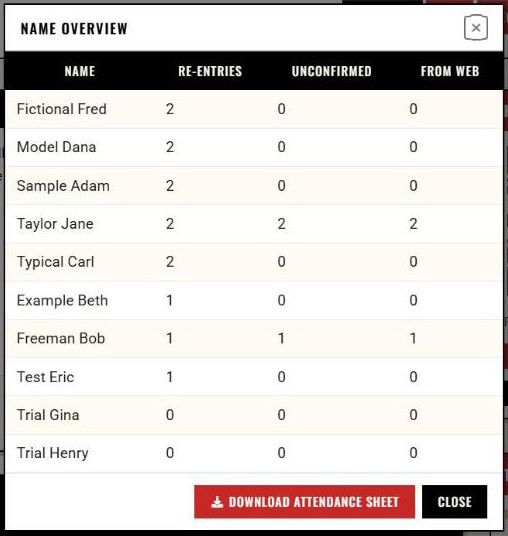
Columns: Name, Re-entries (for training and general events More rounds), Unconfirmed and From web. Players with the same name are added together, which is handy when collecting entry fees. With Download attendance sheet you download the list of players.
9. Print version
Show print version in the event detail opens a page for printing in a new tab:
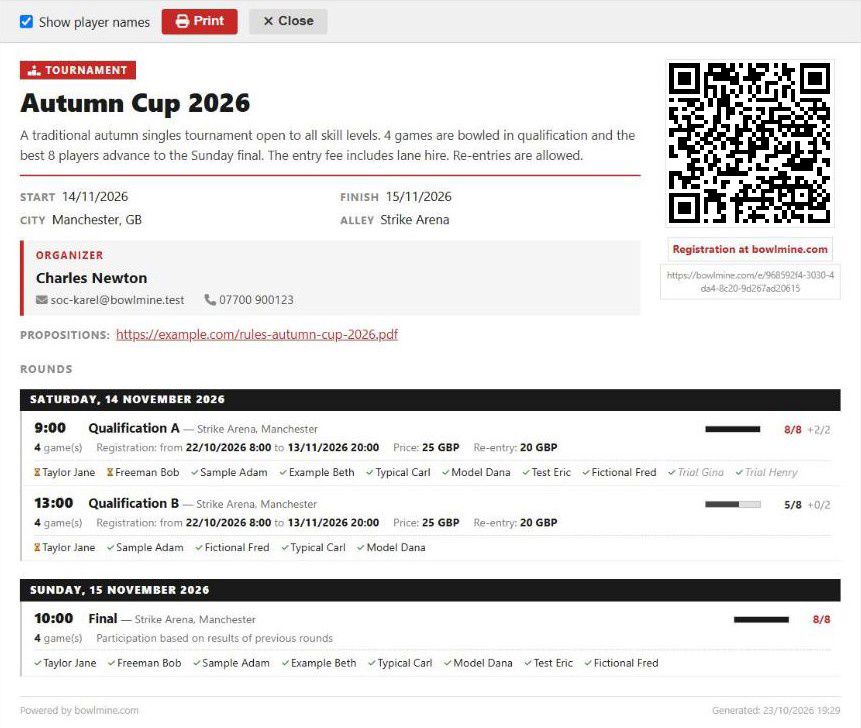
It contains the type and name of the event, the description, start and end, bowling center, city, the organizer contact, propositions, a registration link with a QR code, and the rounds by day: time, bowling center, occupancy (for example "8/8" and "+3/2" for substitutes), number of games, registration window and price, and for an advancement round "Participation based on results of previous rounds". The Show player names checkbox (ticked by default) adds or hides the names. With names it serves as an attendance list at the bowling center desk, without names as a poster for the notice board. The controls at the top have the Print and Close buttons.
Players can find the print version as well: on the event page there is a Print link in the "Total" row.
10. Results
10.1 Round results
For the round, click Results; the page "Score results –
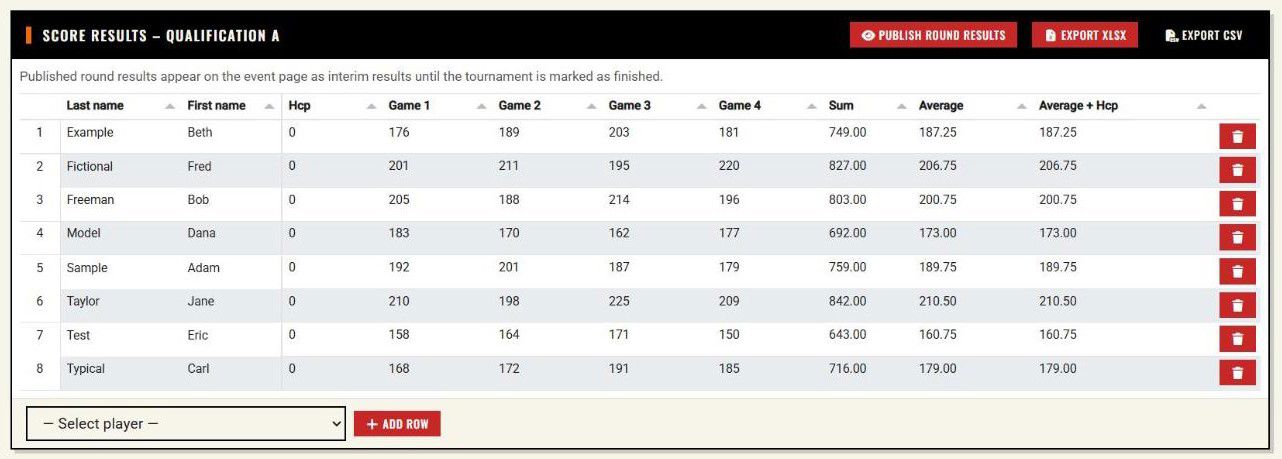
- The table has the columns Last name, First name, Hcp, Game 1 to Game N (N is the round's Number of games), Sum, Average and Average + Hcp.
- The sum is the total of the games plus Hcp for each game played. The average is calculated only from the games played (games with a zero are not counted). Example: games 210, 198, 225 and 209 give a sum of 842 and an average of 210.5.
- Every change is saved automatically, there is no Save button. If saving fails, a red notice "Save error" appears.
- You remove a row with the trash can icon.
- The header has the Export XLSX and Export CSV buttons.
- The selection offers all registered players, including substitutes, who do not have a row yet. So enter the finalists of an advancement round first on the Registrations page (chapter 8.3).
10.2 Interim results
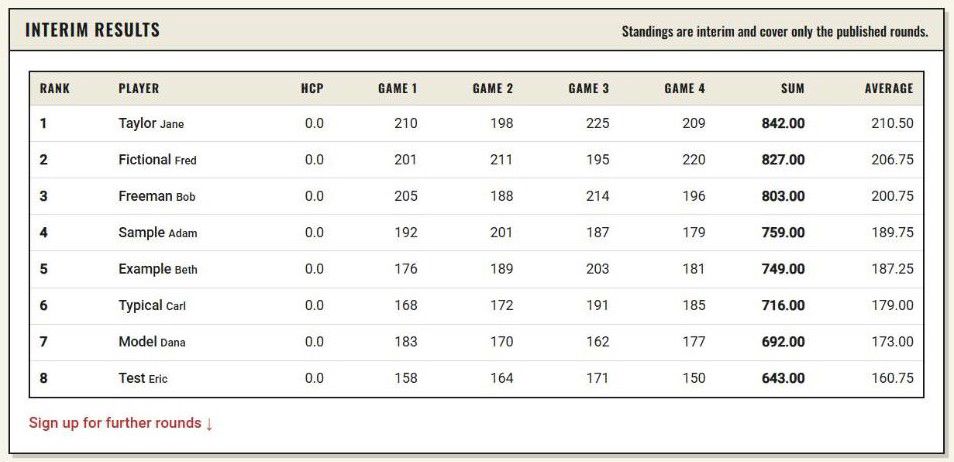
The Publish round results button (after publishing Hide round results) publishes the round results. A green message: "Round results are now public." The published results appear on the event page in the Interim results section with the text "Standings are interim and cover only the published rounds." until you mark the tournament as finished. The interim ranking follows the same rules as the final one (chapter 10.3), but counts only the published rounds; the podium appears only with the final results.
10.3 Final results: tournament finished
In the event detail, click Results. The "Tournament results" page shows all rounds in one table:
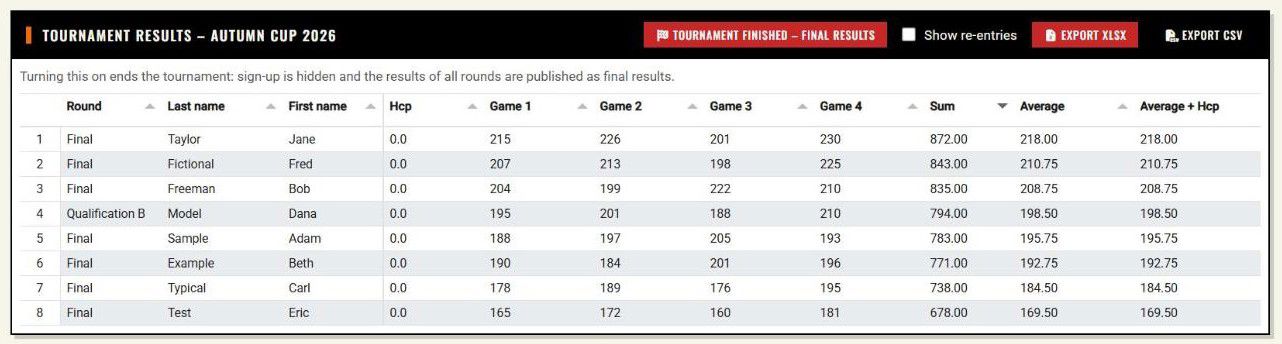
- Show re-entries: when unticked, each player has one row, their best start; when ticked, all starts are shown. (For training and general events the option is called Show all rounds of each player.) The table on this page is a list of starts sorted by sum; it does not calculate the overall ranking by stages.
- Export XLSX and Export CSV export the results to a file. The XLSX has a sheet for each round and a summary sheet Results with the overall ranking by the same rules as the public event page (below); the summary sheet does not depend on the Show re-entries checkbox.
- Tournament finished – final results: turning it on finishes the tournament, hides the sign-up and publishes the results of all rounds as final. A green message: "Final results are now public." The button changes to Take back final results. A finished tournament is marked Past in the events overview and in the detail, even if the dates of the event have not passed yet.
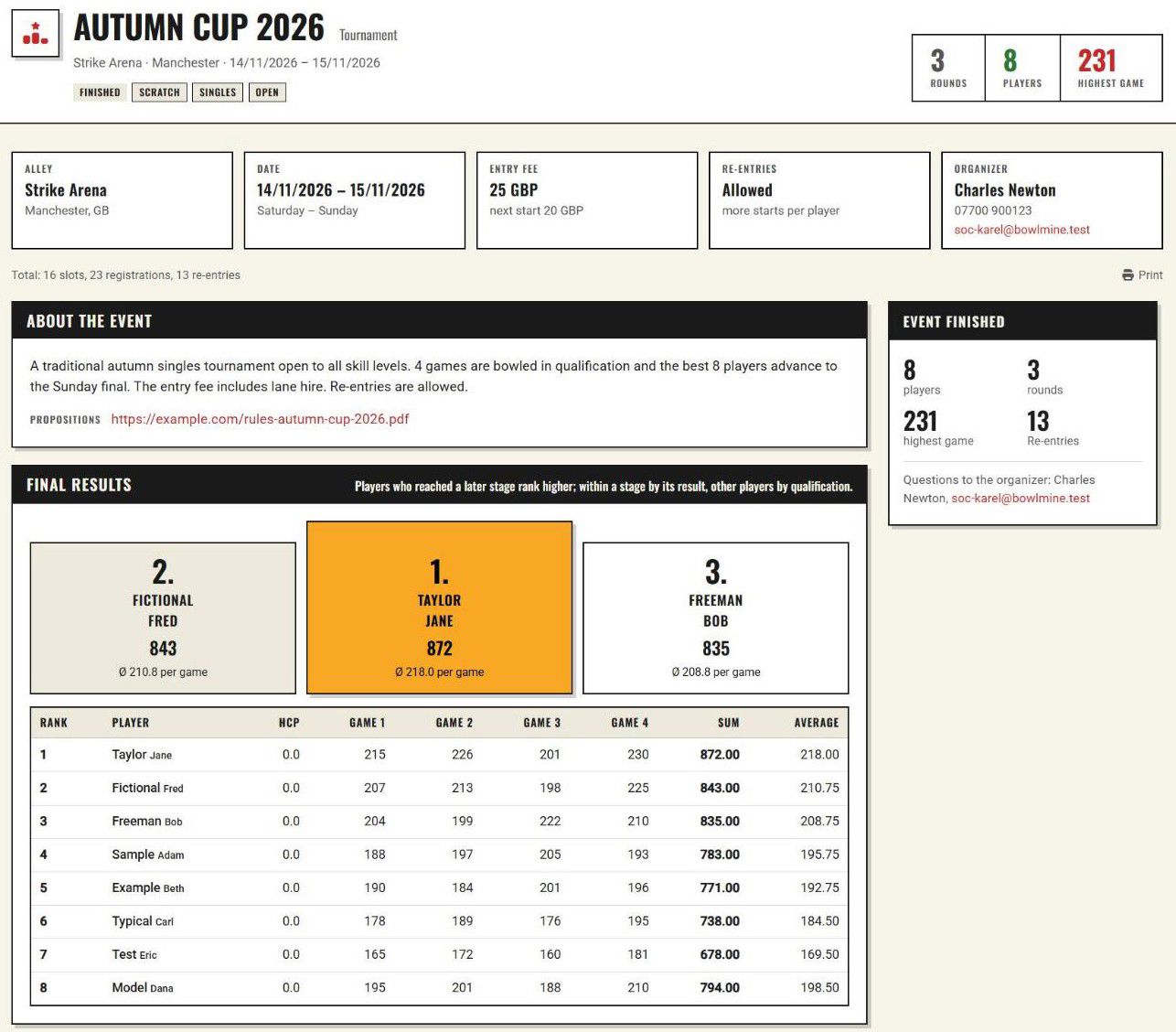
On the event page, players then see the label "Finished", statistics (rounds, players, highest game), the Final results section with a sentence saying by which rule the ranking was determined (see below), the podium of the three best players and the table of the overall ranking. Below it are the "Round results" for each round, if the event has results in more than one round; the round table shows the order of players in that round. The sign-up form disappears; the players' registrations remain and you can still see them.
How the overall ranking is calculated. It applies to interim and final results on the event page and to the summary sheet of the XLSX export. Players are matched by the same last and first name (regardless of letter case). Equal sums give the same rank.
- Qualification consists of the rounds that are not advancement rounds.
- A tournament with re-entries allowed: the player's best start is used (the highest sum including Hcp). The sentence next to the results: "Best start of each player."
- A tournament without re-entries: all the player's qualifying rounds are added up including Hcp (in the summary table the games are placed one after another). The sentence: "Sum of all qualifying rounds of each player, including handicap."
- Advancement rounds and stages. As soon as any player has at least one game played (greater than 0) in an advancement round, players are ranked as follows: first those who reached the highest stage, within a stage by the result in the round of that stage, below them the players of lower stages, and finally those who did not reach an advancement round, by qualification. The sentence: "Players who reached a later stage rank higher; within a stage by its result, other players by qualification." For a finalist, the summary table shows the result of their final round, not of the qualification. A player entered in a further advancement round who has not played in it yet stays in the highest stage they have already played, otherwise among the others by qualification.
- Training and general events do not distinguish advancement rounds: all rounds are counted, with signing up for more rounds allowed the best start, otherwise the sum of the rounds. The sentence next to the sum: "Sum of all rounds of each player, including handicap."
The same rule is explained to players by the answer "How is the overall ranking decided?" in the Frequently asked questions on the tournament page.
10.4 Hidden names block publishing
If the event has Hide player names on the public page switched on, results cannot be published: the Publish round results and Tournament finished – final results buttons are disabled with the text "Turn off hiding of registered players first." You turn the hiding off in the event edit form. For an already published round, Hide round results stays active and the page warns: "Results are not shown publicly while player names are hidden."

11. Training, parties and other events
11.1 For coaches: training and courses
The same tool that runs a tournament also serves a coach. Instead of qualifications, the rounds are individual sessions.
In the organizer zone, click New training. The form is the same as for a tournament, only without subtypes:
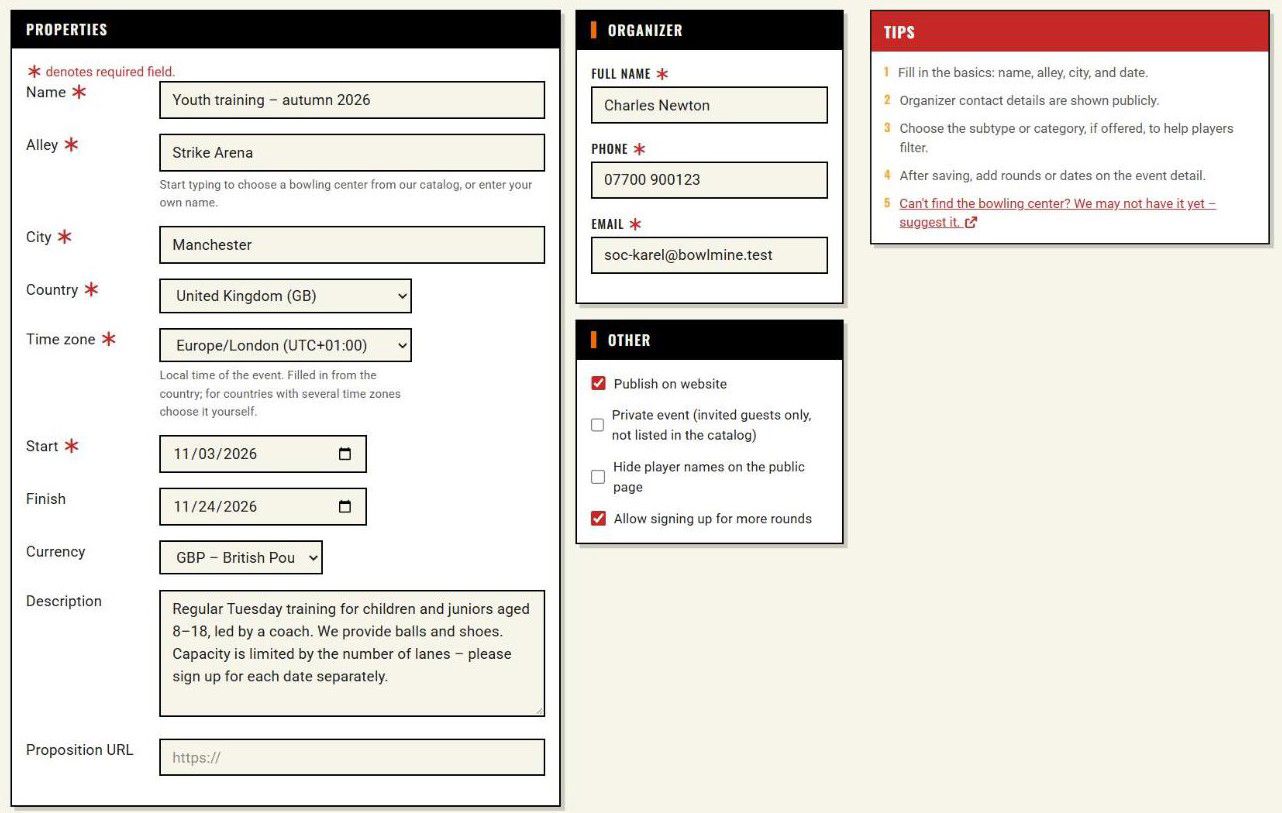
Our example Youth training – autumn 2026:
- Start 3/11, finish 24/11.
- Allow signing up for more rounds is on (for a tournament the same option is called Allow re-entries). For training this means a child can sign up for several sessions; the word re-entry is not used on the event page or in the sign-up.
- We published the event by ticking Publish on website.
- Four rounds = four Tuesday sessions at 16:30 (for example "Training 3 Nov"), each with a capacity of 12 (3 lanes × 4 children), 2 substitutes, 2 games and a price of 6 GBP.
A parent ticks all the sessions the child will attend and writes into the note what the coach should know:
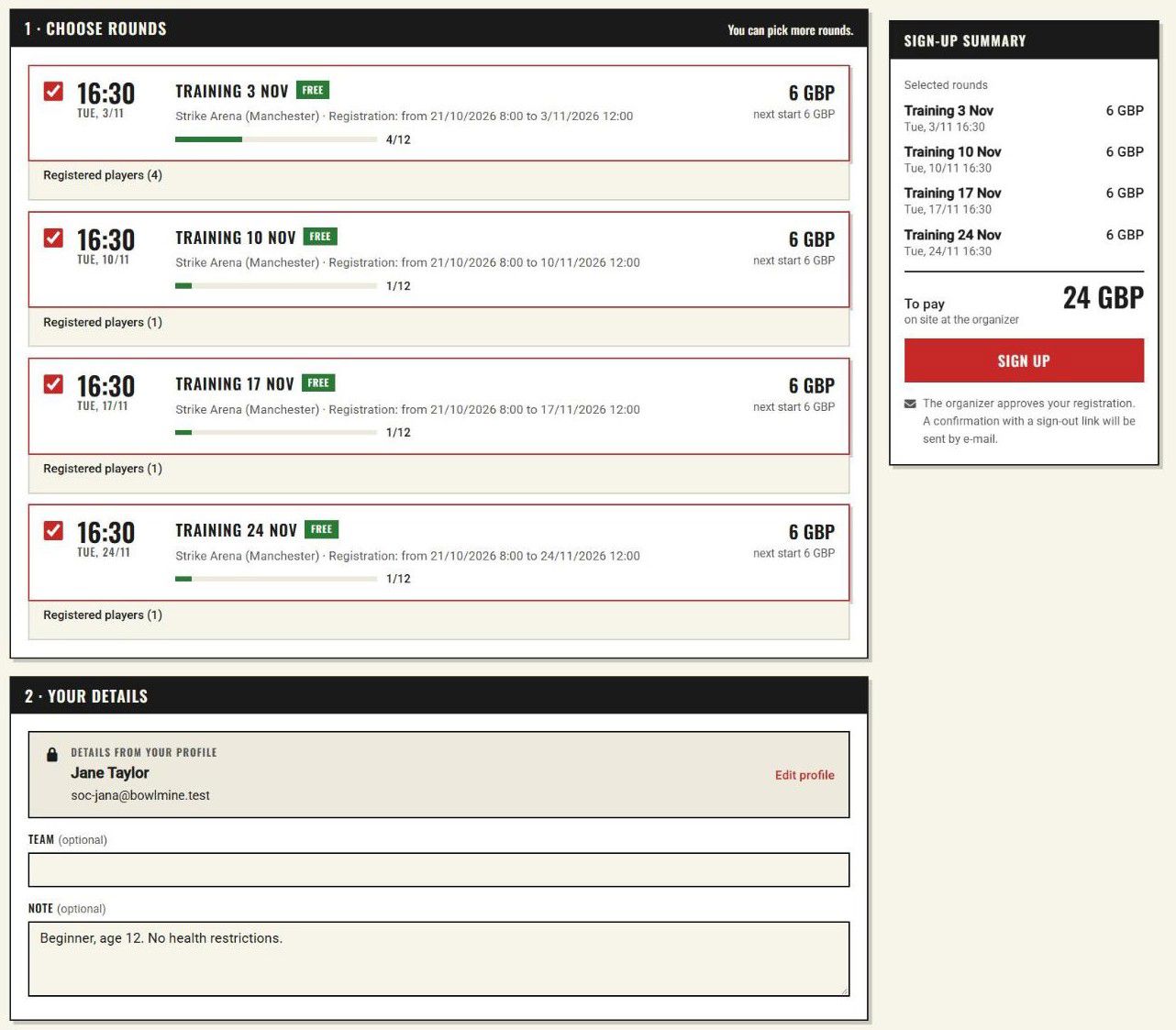
For each session the coach sees who is coming, the notes (level, age, health restrictions) and the occupancy. Regular trainees are entered in bulk at the start of the season (chapter 8.3); new interested players sign up through the QR code.
Ideas for using training:
- A beginners' course: 4 sessions, signing up for the whole course = ticking all the rounds.
- A weekend camp: a round = a block (Saturday morning, Saturday afternoon, Sunday).
- Individual consultations: a round = a 30-minute slot with a capacity of 1.
- Results as a training diary: enter the trainees' games in the round results and compare the export over time. For training and general events the results page has neutral names: Results, the button Event finished – final results and the option Show all rounds of each player. The overall ranking on the event page counts all rounds (chapter 10.3).
11.2 A birthday party as a general event
Anyone organizing a party at the bowling center needs to know how many people are coming, to book the right number of lanes. New general event is made for exactly that:
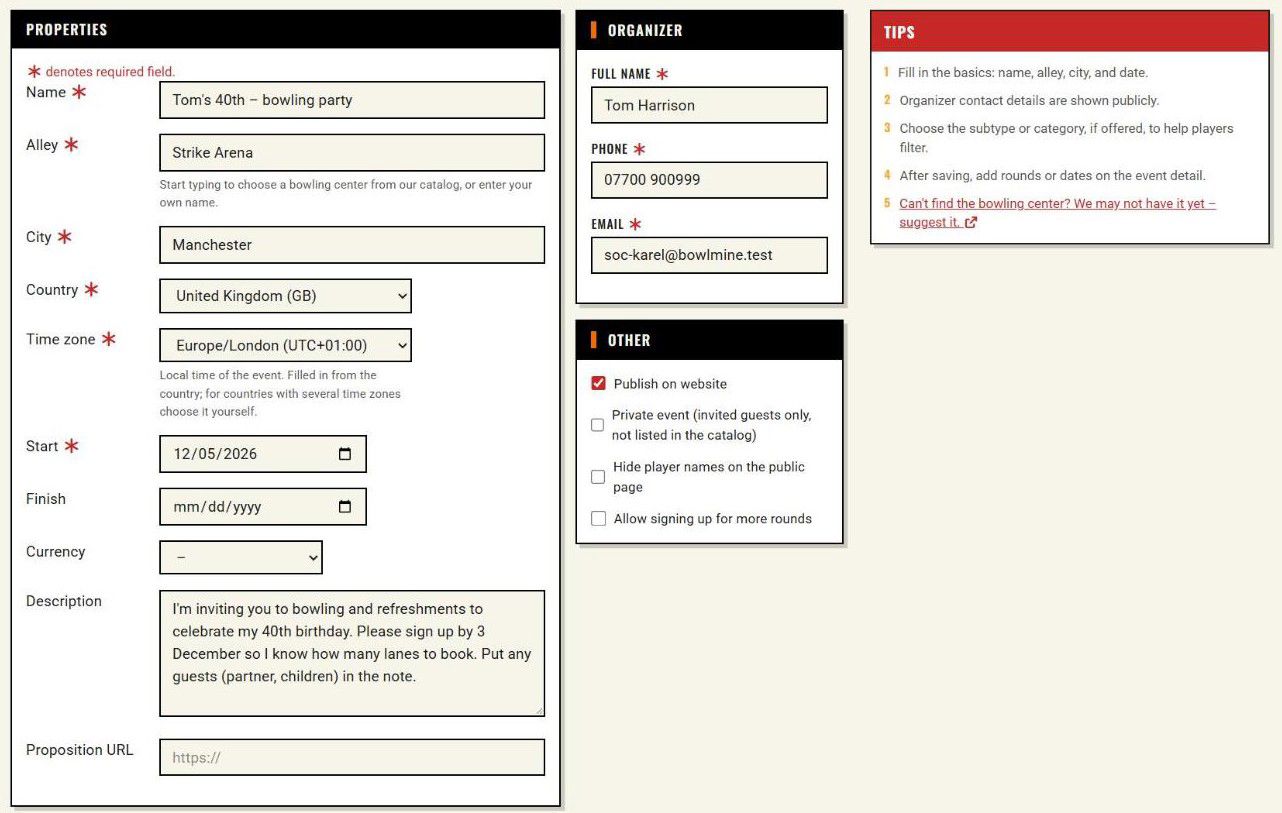
In our example Tom's 40th – bowling party:
- The contact is overwritten with the person celebrating (Tom Harrison), even though the event is created by the organizer account. The contact can be changed for every event.
- Currency is empty and so is the round price: nothing is paid at a party and the price is not shown.
- One round, Evening party, with a capacity of 24 and registration until 3/12; without "Allow signing up for more rounds" the player chooses one round.
Watch the counts: One registration = one spot in the capacity, even if a guest writes "I'm coming with my wife and two children". Either ask the guests to sign up individually, or set the capacity with a margin and add up the numbers from the notes.
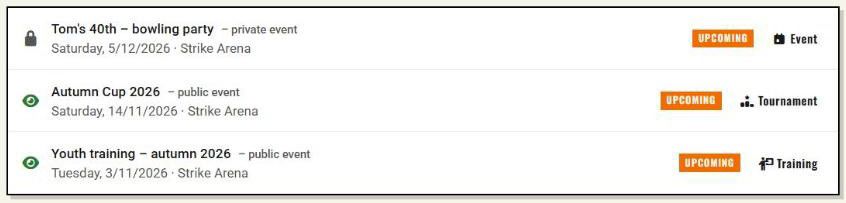
You can see all three sample events together in the organizer zone overview:
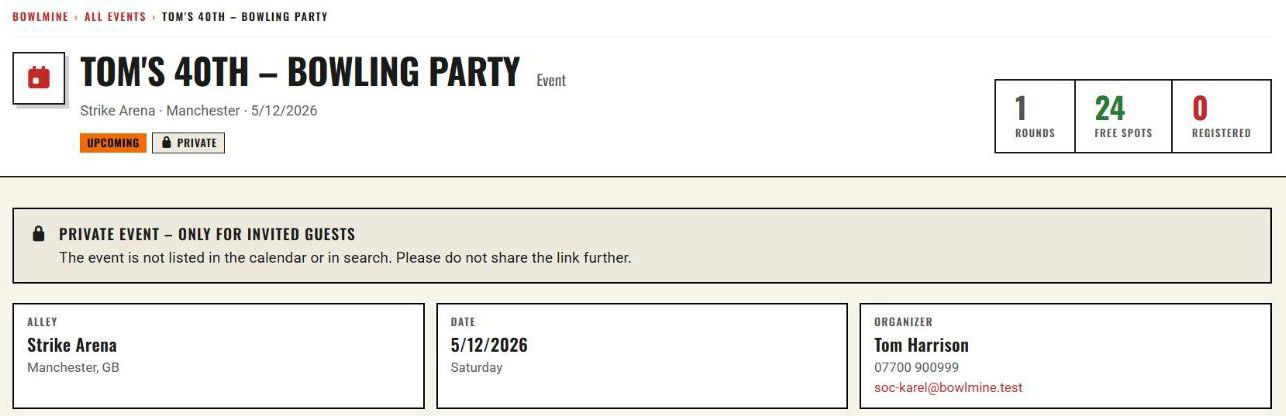
11.3 A private event and hidden names
A general event must be published, otherwise it does not accept registrations. For a private party, tick Private event (invited guests only, not listed in the catalog) on the published event:
- The event is not in the calendar or in search. A player who receives the link sees the label "Private" and the message "Private event – only for invited guests" with the request not to share the link further.
- In the Registration preview dialog there is also a reminder that you have to send the link to the guests yourself.
- The option Hide player names on the public page makes sure that guests do not see the names of the others.
11.4 More ideas
| Event | How to build it |
|---|---|
| A company team-building | General event, round = a shift on the lanes, note = diet, transport. |
| A club meeting or annual general meeting | General event, one round, capacity according to the room. |
| A school trip, an after-school club | Training or general event, round = a class or group. |
| A charity tournament | Tournament; write "voluntary contribution" in the price (the price is free text). |
| A mystery doubles night | Tournament with the subtype Mystery doubles, one round, the pairs are drawn on the spot. |
| League nights | Tournament or general event, round = a playing night, each at a different bowling center. |
12. When something goes wrong
| What is happening | Probable cause | What to do |
|---|---|---|
| The organizer zone does not open, I see only a message about the role. | The account does not have the Tournament organizer role. | Request the role (chapter 2.2) and sign in to the organizer zone after the administrator approves it. |
| The event form comes back with an error after "Save". | A required field is missing (City, Country, Time zone), or the event Finish is earlier than the event start or the start of the last round. | Read the messages under the fields (chapter 3.4). |
| An event or a round cannot be saved and a message about a limit appears. | The limit of your subscription (number of events, rounds per tournament, slots per round). | Reduce the capacity or the number of rounds, or adjust your subscription (chapter 4.3). |
| A round cannot be saved and there is an error at the "Total slots" field. | The capacity is 0, the default value of the first round. | Enter at least 1. |
| Players report that they cannot sign up, the round cannot be ticked. | The registration window has not started yet or has ended (label "Opens …", "Closed"), or the round is an advancement round. | In the detail check the row "Registration: from … to …" and edit Signups open and Signups close in the round. For further rounds beware of the window inherited from the previous round. |
| The new round form has a registration window filled in that you did not enter. | Further rounds copy the values of the last round, including the registration window. | Edit or clear the window in the new round. |
| The event is not in the calendar. | It is not published, it is private, or a filter hides it (the default view is only Tournament). | Check the eye icon, the Private event option and the filters. |
| The public link returns "Page not found". | The event is hidden and you are not signed in as its organizer. | Publish the event with the Publish button. |
| The public event page has no sign-up form. | The event is hidden, the tournament is finished (final results are public), or the event's finish day has already passed (without a filled-in Finish, the day of the last round). The server does not accept a registration for a past event either. | Publish the event, or for a tournament use Take back final results, or edit the event Finish. |
| The order in the results table does not look as I expect. | The ranking follows the mode of the event: with advancement rounds the highest stage (by the start of the round) decides, otherwise the best start (re-entries) or the sum of the qualifying rounds. | Check the starts of the advancement rounds and the Allow re-entries option; the rules are in chapter 10.3. |
| A player cannot sign up: "You are already registered for this round." although they are not in the round. | The round has another player with the same first name, last name and email (typically a shared family address). | Enter them manually, or have them sign up with their own email. |
| Results cannot be published, the button is disabled. | Hide player names on the public page is switched on. | Turn the name hiding off in the event edit form (chapter 10.4). |
| A player wants to change the name or email in a registration and cannot. | They are signed in: in the sign-up they see only the "Details from your profile" block and the details in it cannot be changed. | They should correct their details in their profile, or you correct them in the detail of their registration. |
13. Limitations worth knowing
- The event type cannot be changed after creation.
- The event description is plain text without formatting and links. For a link use the Proposition URL field, for further materials Documents.
- Duplicates are checked by first name, last name and email (for a signed-in player by account).
- One registration = one spot. A companion is not counted in the capacity on its own.
- The order of substitutes is determined by the time of registration.
- A hidden event does not accept registrations and only you can see it. A published event and the players' names are public unless you hide them or mark the event as private.
- A player does not sign up for an advancement round on their own, you enter them. The stages of advancement rounds are determined by their start; there is no special mark for a final.
- The organizer does not set the overall ranking by hand. It is calculated from the results according to the rules in chapter 10.3.
- Players added in bulk have no contacts (email and phone are empty).
- Subscription limits (number of events, rounds per tournament and slots per round) are listed under Pricing.
- The diamond icon next to New tournament marks a paid feature.
14. Checklist before you publish
- The correct type of event (tournament, training, or general event). You cannot change it later.
- Name, bowling center (from the catalog or your own name), city, country, time zone, start and finish.
- Description: format, number of games, what the entry fee includes, advancement system. Possibly the propositions and documents.
- Organizer contact that you agree to make public.
- For a tournament, the subtypes by which players will find you.
- Re-entries switched on only if you want more starts per player.
- For every round: start time, capacity (not 0!), substitutes, number of games and price.
- For every round, the registration window checked (including values inherited from the previous round) in the event detail.
- The Final and other selection rounds marked as advancement rounds, each further stage with a later start than the previous one.
- Private event or hidden player names set, if you need them.
- Preview of the public page reviewed through the eyes of a player.
- The event published (green eye) and visible in the calendar (for a public event).
- The QR code or the print version posted at the bowling center and the link sent to players.
- You approve registrations from the web as they come, publish the results after each round and finish the tournament at the end (final results).
This guide describes BOWLMINE version 0.103.0 (October 2026). The data in the screenshots is fictitious.
This guide was generated with the help of AI and may contain errors.